The Ember project is excited to announce the release of Ember v6.9. This is a standard minor release as part of the standard Ember Release Train process. Version 6.8 of Ember.js is now promoted to LTS (Long Term Support). An LTS version of Ember continues to receive security updates for 9 release cycles (54 weeks) and bugfixes for 6 cycles (36 weeks). LTS releases typically occur every four minor versions. The previous LTS version of Ember.js was 6.4.
Ember.js v6.9
All changes in Ember.js 6.9 were internal, docs, and/or bugfixes that were backported.
Ember CLI v6.9
Ember CLI 6.9 upgrades broccoli to ^4.0.0 and as a consequence, the minimum Node version Ember CLI supports is now 20.19. This is in accordance with our Node Support Policy.
We have released a new major of broccoli to address security vulnerabilities and deprecations in dependencies of the package. These vulnerabilities should not have been exploitable as broccoli should only ever be run in a development environment but this fixes a number of npm audit headaches. There is more work to do here in updating our long-tail of dependencies. The major of broccoli is otherwise completely API-compatible. We have dropped support for node < 20.19 because we need the require(esm) feature that was backported to that version.
Thank You!
As a community-driven open-source project with an ambitious scope, each of these releases serves as a reminder that the Ember project would not have been possible without your continued support. We are extremely grateful to our contributors for their efforts.
Hello Windows Insiders, today we are releasing Windows 11 Insider Preview Build 26220.7535 (KB5072046) to the Dev & Beta Channels.
As a reminder, we are offering the same builds to both the Dev & Beta Channels on Windows 11, version 25H2.
If you are an Insider in the Dev Channel, you now have a window to switch from the Dev Channel to the Beta Channel if you would like. This window is soon closing.Important: Once we move Dev Channel forward to a higher build number, the opportunity to switch between these channels will close until a future opportunity becomes available.
Note: Insiders who previously had trouble switching channels should be able to do so now.
Changes in Dev & Beta Channel builds and updates are documented in two buckets: new features, improvements, and fixes that are being gradually rolled out for Insiders who have turned on the toggle to get the latest updates as they are available (via Settings > Windows Update*) and then new features, improvements, and fixes rolling out to everyone in the Dev & Beta Channels. For more information, see the Reminders section at the bottom of this blog.
New features gradually being rolled out with toggle on*
Bringing Copilot-powered image descriptions to Narrator
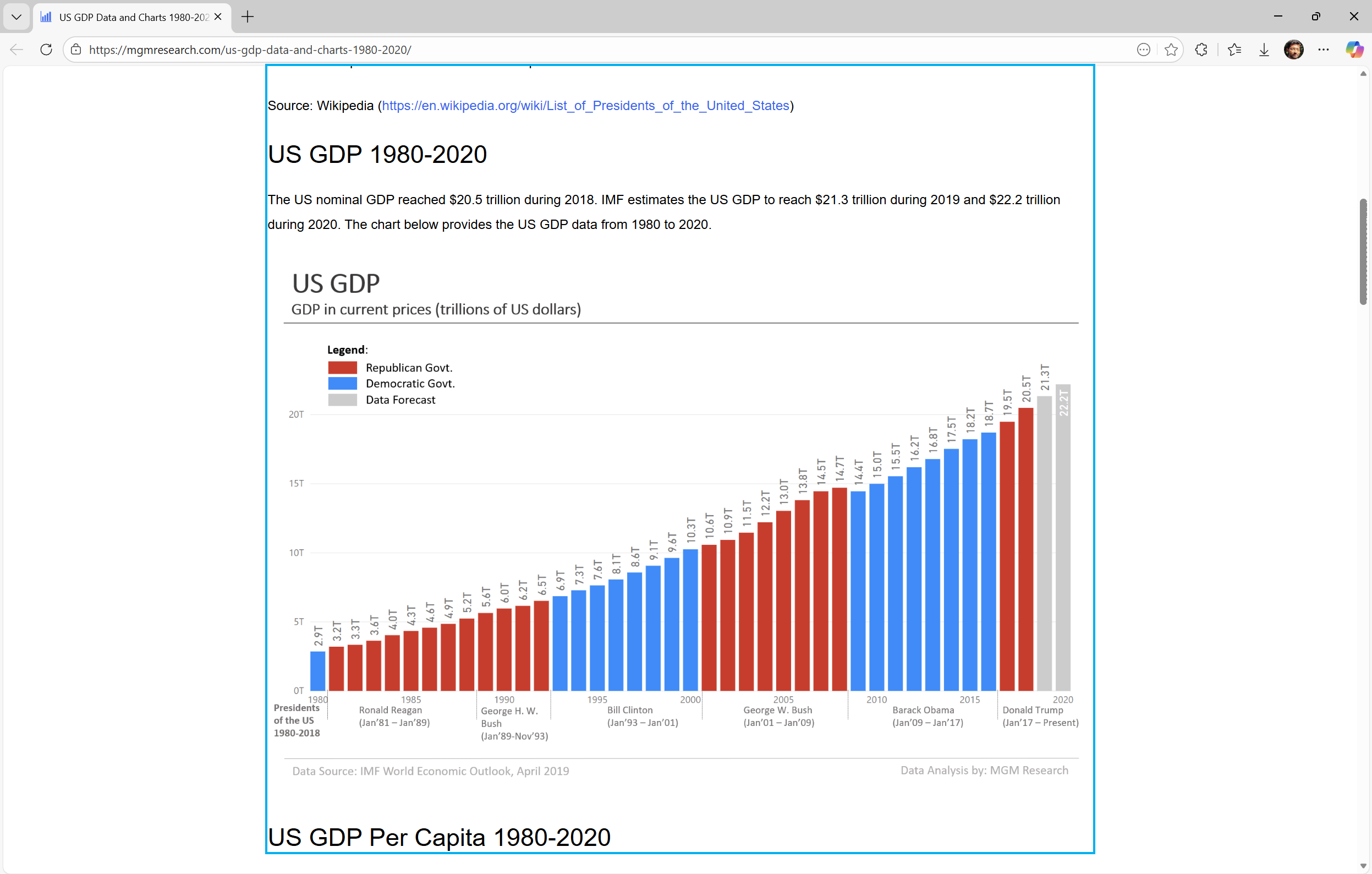
Last year, we introduced rich image descriptions in Narrator on Copilot+ PCs—making it possible for blind and low-vision users to hear detailed, AI-generated descriptions of images, charts, and graphs.
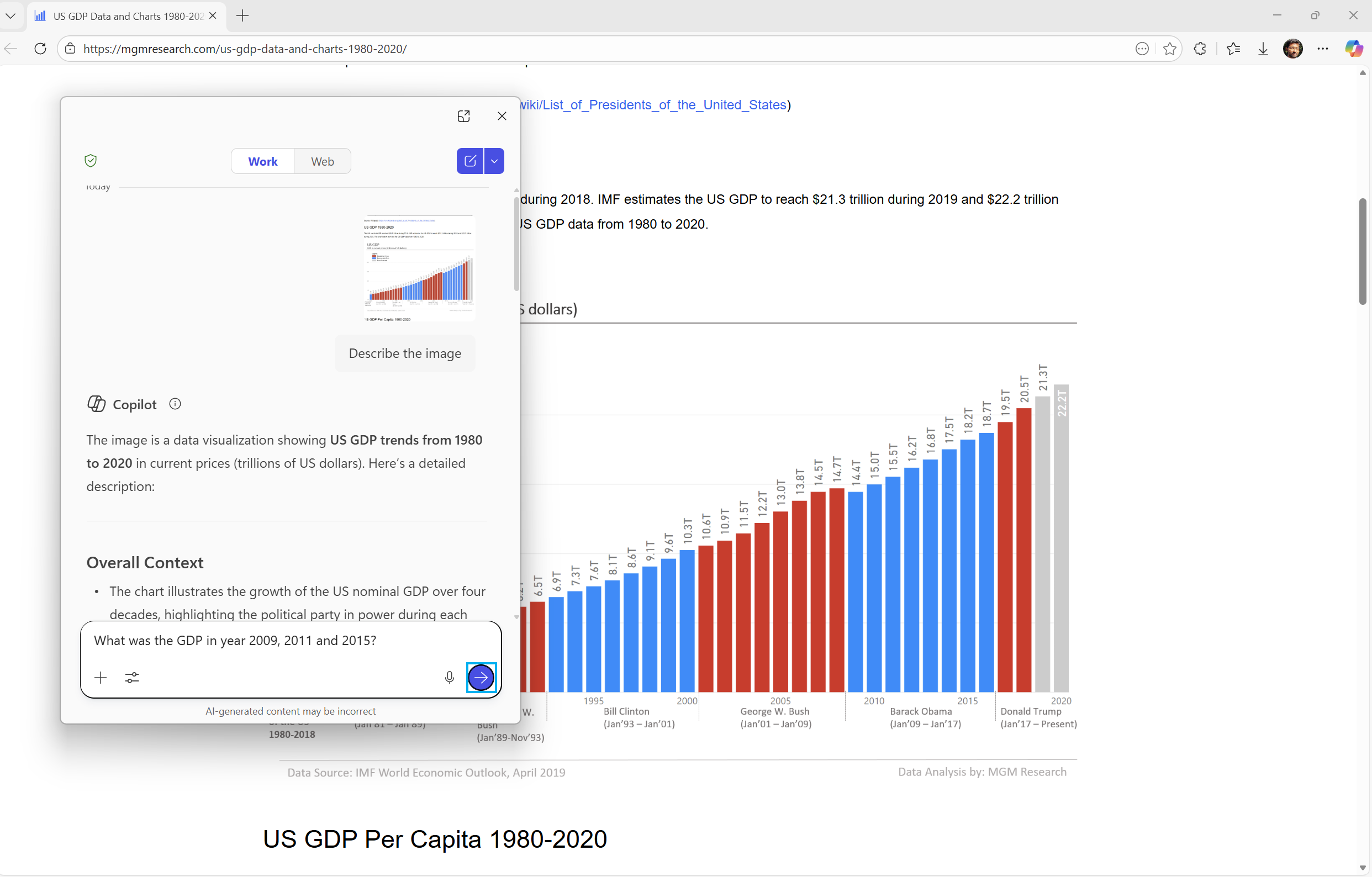
Narrator can now work with Copilot on all Windows 11devices to further understand images and visual elements on your screen. You can press Narrator key + Ctrl + D to describe the focused image or press Narrator key + Ctrl + S to describe the full screen. Copilot opens with the image ready, allowing you to enter your own prompt and generate a description tailored to what you want to know. Importantly, the image is only shared after you choose to describe it. You remain in control at every step.
On Copilot+ PCs, Narrator continues to provide instant, on-device image descriptions using local AI. Press Narrator key + Ctrl + D/S, and Narrator immediately reads a rich description—highlighting people, objects, colors, text, numbers, and layout. When you want more detail or follow-up insights, simply select Ask Copilot to continue exploring.
This feature is not available in the European Economic Area (EEA).
[caption id="attachment_178514" align="alignnone" width="1024"] Use Narrator with Copilot to explore trends, labels, and key changes in images and visual elements (example-US GDP growth over several decades).[/caption]
[caption id="attachment_178515" align="alignnone" width="1024"] Explore and ask questions about the images and visual elements using your own words such as details, trends, and summaries.[/caption]
FEEDBACK: Please file feedback in Feedback Hub (WIN + F) under Accessibility > Narrator.
Uninstalling Microsoft Copilot App on managed devices
Admins can now uninstall Microsoft Copilot for a user in a targeted way by enabling a new policy titled RemoveMicrosoftCopilotApp. It will apply for devices/users that meet the below conditions:
Microsoft 365 Copilot and Microsoft Copilot are both installed
The Microsoft Copilot app was not installed by the user
The Microsoft Copilot app was not launched in the last 28 days
If this policy is enabled, the Microsoft Copilot app will be uninstalled, once. Users can still re-install if they choose to. This policy is available on Enterprise, Pro, and EDU SKUs.
To enable this policy, open the Group policy editor and go to: User Configuration -> Administrative Templates -> Windows AI -> Remove Microsoft Copilot App.
FEEDBACK: Please share your feedback in Feedback Hub (WIN + F) under Desktop Environment > Taskbar.
Changes and Improvements gradually being rolled out with toggle on*
[For Developers]
We’re excited to share an enhancement to the Cross Device Resume capability that we announced earlier. Until now, app developers could integrate with Resume using a solution based on the Link to Windows app. We’ve now introduced an additional integration path leveraging the Windows Notification System (WNS). This additional option expands the scope of users to whom you can offer Resume capability, while delivering the same seamless experience on Windows. We invite developers to explore onboarding with this new capability alongside the existing integration method. Together, these options help maximize continuity across devices. Use WNS Notifications to implement Cross Device Resume (XDR) - Windows apps | Microsoft Learn.
[Windows Spotlight]
The Windows Spotlight icon is getting refreshed. The new icon flight was started in late December for a small set of Insiders.
[caption id="attachment_178516" align="alignnone" width="109"] Old Windows Spotlight icon on the desktop.[/caption]
[caption id="attachment_178517" align="alignnone" width="108"] New Windows Spotlight icon on the desktop.[/caption]
Fixes gradually being rolled out with toggle on*
[Start menu]
Fixed an issue where the edge of the warning dialog shown when shutting down your PC while other users were still signed in was truncated by the edge of the Start menu.
[File Explorer]
Fixed an issue which was causing explorer.exe to crash for some Insiders when invoking the context menu on the desktop recently.
[Input]
Fixed an issue which could lead to a black flash when using a pen to ink in Snipping Tool.
[Print]
Fixed an issue which could lead to two print dialogs appearing when you opened print instead of just one.
Fixed the color of the close button the print dialog to be consistent with other windows.
Fixed an issue where the text on the Printers and Scanners page in Settings could become truncated and unreadable.
[Windows Update]
Fixed an issue which could lead to the Windows Update settings page hanging when loading.
Known issues
[Xbox full screen experience for PC]
Some apps may behave unexpectedly when using FSE, particularly those that expect to be locked to a given size or launch additional windows.
[Taskbar & System Tray]
We’re working on the fix for an issue which is causing the Start menu to not open for some Insiders on click, although it will open if you press the Windows key. This issue may also potentially impact the notification center (which you can open with WIN + N) and quick settings (WIN + A).
We’re investigating an issue where for some Insiders apps aren’t showing in the system tray when they should be.
We’re working on the fix for an issue in the latest builds where, when the taskbar is set to autohide, it might invoke before interacting with the bottom of the screen, blocking the use of apps in that area.
[Settings]
[NEW] We’re working on the fix for an issue causing Settings to crash when interacting with audio devices.
[Bluetooth]
We’re working on the fix for an issue causing Bluetooth device battery level to not show for some Insiders.
[Click to Do]
We're investigating an issue where the Microsoft 365 Copilot prompt box on selected images does not function if the Microsoft 365 Copilot app is not running.
Reminders for Windows Insiders in the Dev & Beta Channels
Updates are based on Windows 11, version 25H2 via an enablement package (Build 26220.xxxx).
Many features are rolled out using Controlled Feature Rollout technology, starting with a subset of Insiders and ramping up over time as we monitor feedback to see how they land before pushing them out to everyone in this channel.
For Windows Insiders who want to be the first to get features gradually rolled out to you, you can turn ON the toggle to get the latest updates as they are available via Settings > Windows Update*. Over time, we will increase the rollouts of features to everyone with the toggle turned on. Should you keep this toggle off, new features will gradually be rolled out to your PC over time once they are ready.
Features and experiences included in these builds may never get released as we try out different concepts and get feedback. Features may change over time, be removed, or replaced and never get released beyond Windows Insiders. Some of these features and experiences could show up in future Windows releases when they’re ready.
Some features in active development we preview with Windows Insiders may not be fully localized and localization will happen over time as features are finalized. As you see issues with localization in your language, please report those issues to us via Feedback Hub.
Check out Flight Hub for a complete look at what build is in which Insider channel.
Lego’s new sets will make Star Wars sound effects for you. | Image: Lego
It may have been one of the smallest devices announced at CES 2026, but Lego's new Smart Brick was also one of the most talked about debuts of the show. We've recognized it as the "Best in show" in our CES 2026 awards, and following the Smart Play system's launch earlier this week, the first three sets featuring the new Smart Brick are now available for preorder.
Lego is introducing its Smart Brick to the world as part of three new sets in its popular Star Wars line that demonstrate many of the brick's unique capabilities. The cheapest set is the $69.99, 473-piece Smart Play: Darth Vader's TIE Fighter that includes one Smart Brick, one Smar …
Microsoft is testing a new feature that integrates Copilot into the File Explorer, but it’s not going to be another ‘Ask Copilot’ button in the right-click menu. This time, Copilot will live inside File Explorer, likely in a sidebar or Details/Preview-pane-like interface, according to new references in Windows 11 preview builds.
Microsoft watchers @PhantomOfEarth and @a_donglee worked together to uncover a hidden “Chat with Copilot” feature in File Explorer.
@PhantomOfEarth confirmed the details to Windows Latest, and even shared screenshots of the strings that seem to suggest Copilot will be integrated into File Explorer as a “chat view,” not an extra app (where you asked to open Copilot).
How Copilot integration in File Explorer works right now
Until now, you could find Copilot only in specific locations within File Explorer. In fact, it was not exactly integrated into File Explorer.
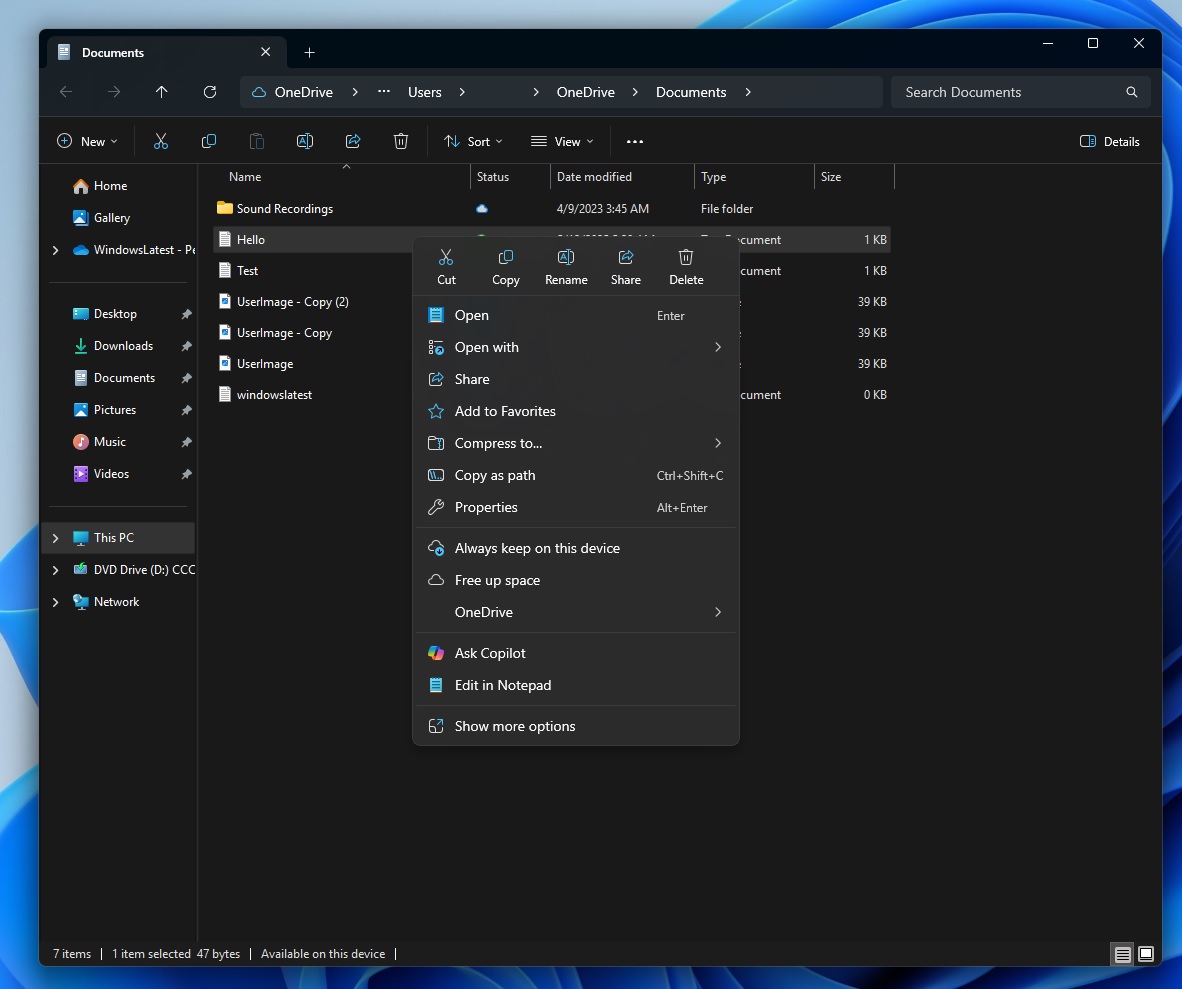
Technically, Microsoft added Copilot to File Explorer a while ago, but I would not call what we have a full-fledged integration. At the moment, if you right-click any file, you’ll see an ‘Ask Copilot’ button, which only sends the file or image to the Copilot. The option disappears when the Copilot app is removed.
Microsoft plans to load Copilot INSIDE File Explorer
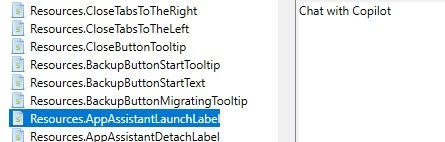
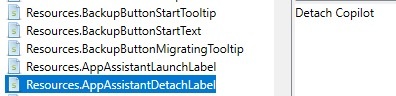
Windows 11 Build 26220.7523 contains references to “AppAssistantLaunch,” which is related to the upcoming Copilot integration in File Explorer. The resources.pri for FileExplorerExtensions SystemApps contain references to two strings, the first is “Chat with Copilot” and the second is “Detach Copilot.”
What makes this convincing is that the hidden button spotted in Windows 11 build 26220.7523 isn’t just a random placeholder. It is traced to an internal name, “AppAssistantLaunch”, and there are matching string resources inside FileExplorerExtensions.
In the above screenshot, the key Resources.AppAssistantLaunchLabel points to “Chat with Copilot”, which suggests that it’s a feature that’s supposed to open a Copilot chat experience from within Explorer, not the Copilot app.
Then, the second screenshot has references to Resources.AppAssistantDetachLabel, which points to “Detach Copilot.”
“Detach” only makes sense if Copilot is first attached to File Explorer, so it’s possible that Copilot will be attached to the sidebar within the File Explorer. By default, Copilot in File Explorer could be docked to a panel, but it can be detached and popped out into its own window.
All of that makes sense because if these references were only about launching Copilot as a separate app, you’d expect references to strings like “Open Copilot” or “Launch Copilot.” But here, we have references to “Detach.”
Microchips implanted under the skin could be portrayed as a convenient way to store and access employment and personal data. (BigStock Photo)
A bill introduced in the Washington state Legislature would ban employers from requiring or pressuring workers to be microchipped, a practice lawmakers want to prohibit before it ever becomes an issue.
The bill would prohibit employers from requiring, requesting or coercing employees to have microchips implanted in their bodies as a condition of employment, and would bar the use of subcutaneous tracking or identification technology for workplace management or surveillance.
It aims to protect worker privacy and bodily autonomy by establishing strict penalties for violations, including civil penalties starting at $10,000 and the right for aggrieved workers to sue for damages and injunctive relief.
Washington state Rep. Brianna Thomas. (Leg.Wa.Gov Photo)
While there’s no known instance of an employer seeking such action, Thomas told GeekWire the bill is a preemptive move.
“We are getting out ahead of the problem because the practice of requiring these chips is too dangerous to wait for it to show up in Washington,” she said Thursday via email. “An employee with a microchip stops being an employee — they are essentially being dehumanized into corporate equipment.”
The Carnegie Council for Ethics in International Affairs reported that internationally, more than 50,000 people have elected to receive microchip implants to serve as their swipe keys, credit cards, and more. The organization noted that the technology is especially popular in Sweden, where chip implants are more widely accepted for gym access, e-tickets on transit systems, and to store emergency contact information.
HB 2303 would add a new section to Chapter 49.44 of the Revised Code of Washington (RCW), titled “Violations — Prohibited Practices.” The chapter serves as a catch-all for labor regulations that define and prohibit specific unfair or illegal activities by employers, employees, and labor representatives.
The legislation is similar to laws passed in Arkansas, California, Missouri, Montana, Nevada, New Hampshire, North Dakota, Oklahoma, Utah, Wisconsin, Indiana, Alabama, and Mississippi.
“Workers cannot legitimately consent to a program because of the power dynamic between them and the employer,” Thomas said. “Implanted chips have no place in a work environment.”
Nevada is “arguably the most restrictive” on microchip implants and permanent identification markers, according to the Carnegie Council. Its law prohibits people from voluntarily electing to receive such markers in Nevada.
Thomas said HB 2303 does not go as far as Nevada’s restrictions, noting that workers would still be free to make their own choices outside the workplace.
Thomas said she believes companies will eventually pitch the technology to their employees by telling them it’s more convenient and easier — you don’t have to worry about forgetting your work access badge, etc.
“Many times convenience causes people to view things too narrowly and they don’t see the big picture,” she said. “The power dynamic between an employer and an employee makes true, uncoerced consent impossible. This is about making sure workers not only have the option but also consider all the factors when these programs are presented to them.”
The Carnegie Council also reported on the privacy, data security, and health safety concerns that microchips present, including from technologists who worry about IoT vulnerabilities in sensors and network architecture that could be exploited by hackers.
While the Washington proposal targets simple Radio Frequency Identification (RFID) tags, a more sophisticated wave of “brain-computer interfaces” (BCIs) is rapidly moving toward the mainstream.
Elon Musk wants to ramp up production of his Neuralink brain‑computer interface chips in 2026. He envisions the technology helping people with neurological conditions while eventually enabling humans to interact directly with computers. The company plans to make the surgical implantation process nearly fully automated to scale the procedure.
Washington’s HB 2303 is scheduled for a public hearing Jan. 14 in the House Committee on Labor & Workplace Standards.
Hi, Insiders! For almost two decades, Microsoft OneDrive has been helping people store and manage everything from family photos to work files in the cloud. As our digital demands continue to grow, OneDrive too has evolved to keep the pace, delivering smarter tools for your everyday work and life.
This past year alone, we’ve introduced enhancements including AI-powered support and improved annotation options, many of which were influenced by your feedback and suggestions! Here’s a look at how OneDrive upgraded in 2025:
Transform documents into actionable insights with Copilot
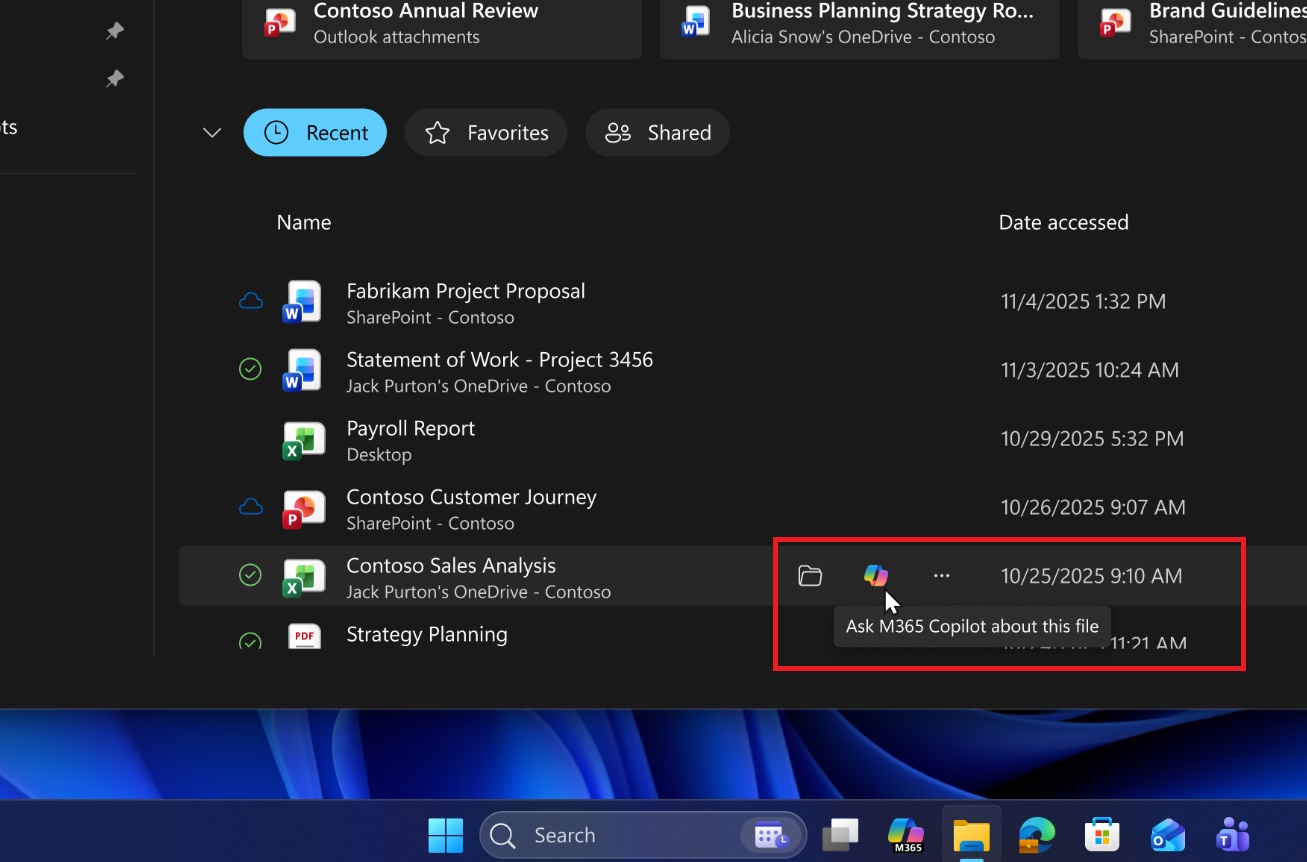
With Microsoft 365 Copilot in OneDrive, turning information into action has never been easier. Quickly gather information about your files to make smarter decisions and accelerate your work. Copilot can provide concise summaries of multiple files at once, compare and highlight key differences between files, and answer questions about your documents, meeting recordings, or images.
Audio overviews in OneDrive offer a new and enjoyable way to digest content, while Copilot in File Explorer can take over the tedious task of generating FAQs around your lengthy files’ contents.
Photos Agent helps you find the exact photo you need via a simple prompt, and Moments and photo shuffle curate personalized slideshows to resurface forgotten memories.
We know how important it is for many of you to be able to easily secure and access your files, so we’ve released several features geared toward making this process intuitive, such as the ability to name files on Mac using special characters (like “ and ?) and automatic saving to the cloud in Word.
We also announced the hero link, which removes the headache of needing to create, delete, and manage multiple links to your files. New annotation and markup features improve collaboration by allowing you to use digital, hand-drawn ink, highlight text, draw shapes, and even insert sticky notes directly onto your PDFs. Finally, we added support for external, non-removable drives for Mac users for seamless syncing and better flexibility, as well as the ability to transfer ownership of files in just a few easy clicks.
OneDrive’s performance got even faster and more dependable in 2025, with updates including added shortcuts to keep shared library content side-by-side with your individual files and Microsoft 365 Archive, which offers a simple archiving solution to declutter workspaces, reduce costs, and keep legacy content discoverable.
Copilot + OneDrive: Watch all these features and more in action
Want to dive even deeper? Cath the full on-demand video from our third-annual OneDrive event. From our product leaders Jeff Teper to Jason Moore, to the experts building these features every day, it’s packed with valuable content!
We hope that these announcements have inspired you to take advantage of new and improved capabilities in OneDrive. We value your ongoing support and insightful feedback as it inspires us to continually innovate and enhance our products as an essential tool for millions around the globe. Every suggestion and comment you share plays a pivotal role in our journey towards excellence. Please keep them coming and help us make OneDrive the best product it can be for YOU using any of these methods!
 Log in