Log in



Microsoft recently began rolling out its Low Latency Profile CPU Boost technology under the generic label of general performance improvements in the Windows 11 KB5089573 optional update for Windows 11. It works entirely in the background to dynamically spike your processor frequency when you interact with the Start menu, Windows Search, and Action Center.
However, there is no user-facing toggle in the Settings application (which I don’t think it should have in the first place), and there is no notification informing you that the system is active.
Also, if you are running a relatively powerful desktop or a modern premium laptop, you likely will not notice a jaw-dropping change in core Windows shell experiences because your hardware was already fast to begin with.
After enabling Low Latency Profile:
So, how would you know if your PC has Low Latency Profile enabled? Here is a simple way to verify if the hidden CP Boost feature is successfully running on your Windows 11 computer.
Check CPU usage before installing the May 2026 Optional Update
If you haven’t installed the May Windows 11 Optional Update already, you can have a more “scientific” testing.
Open the Task Manager, go to the Performance section, and check the CPU usage while opening the Start menu, Search, and Action Center. Since Microsoft also mentioned “app launches” in the KB5089573 changelog, try opening a few inbox apps as well, like Outlook and Edge.
“[General Performance] This update accelerates app launch and core shell experiences such as Start menu, Search, and Action Center.”
But when I force-enabled Low Latency Profile on my PC, I noticed that the Task Manager CPU usage may not show a CPU spike, as its polling rate is too slow to catch brief microsecond frequency spikes.
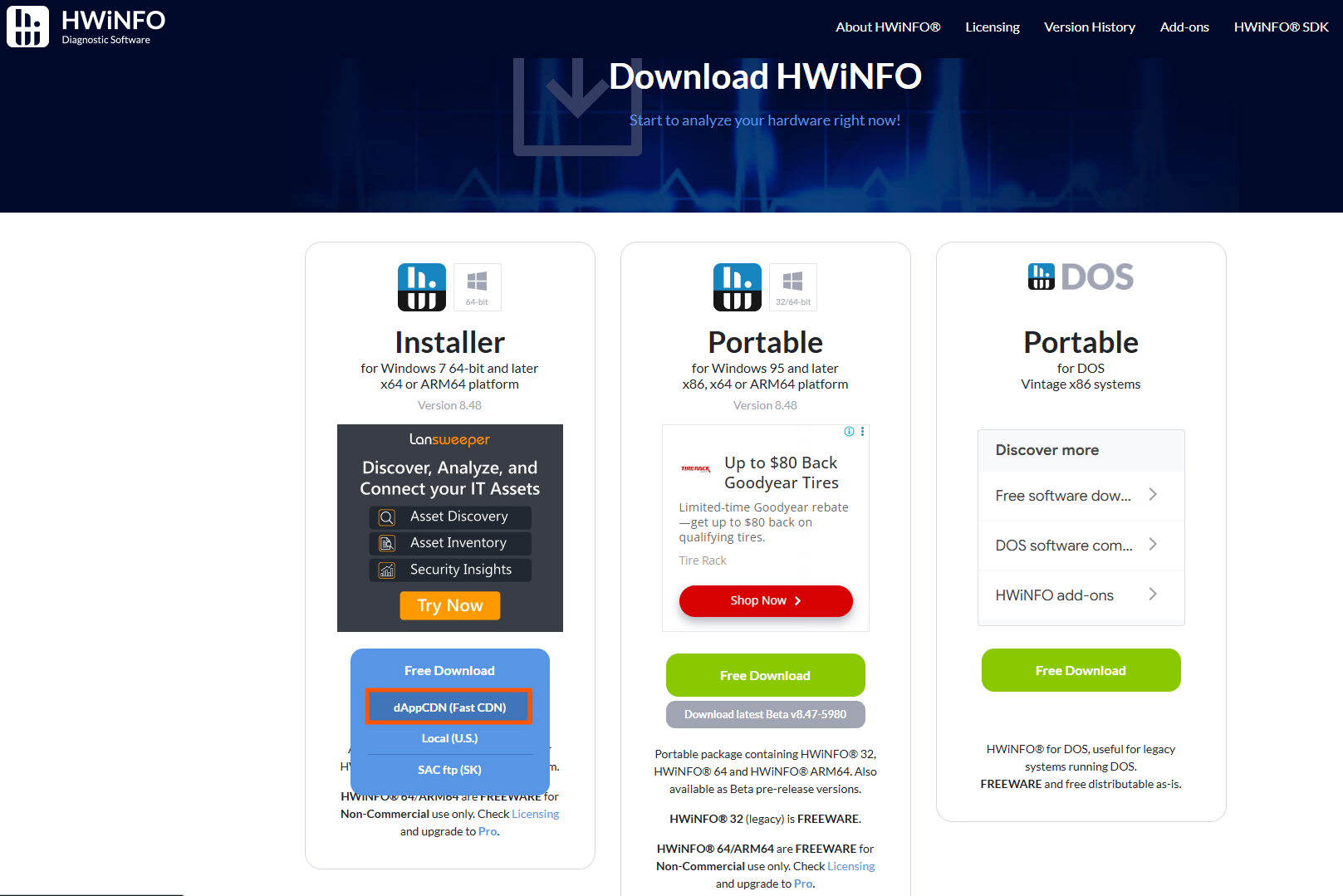
So, I recommend that you install the highly reliable HWiNFO software to check CPU usage. Go to the official HWiNFO website and download the free, lightweight hardware analysis utility.
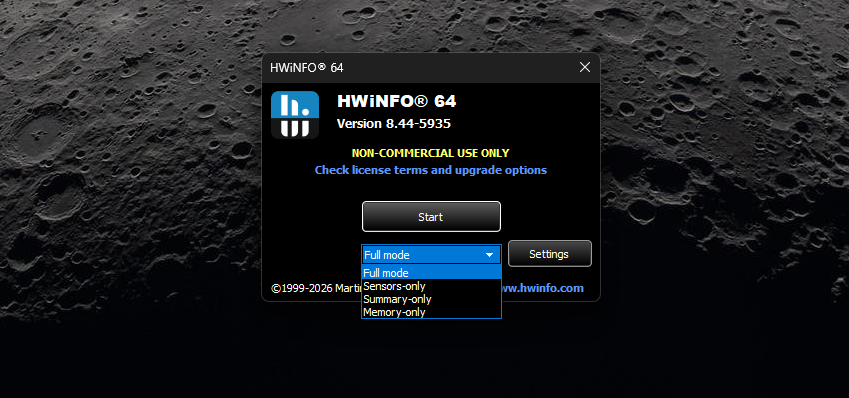
Once downloaded, launch HWiNFO. You can either choose Full mode or Summar-only and click Start.
Normally, you wouldn’t see any CPU spike while opening the Start menu or system flyouts. You may see a brief CPU spike while launching some apps, but Low Latency Profile is mainly for core Windows experiences as of now. This serves as our baseline for comparison.
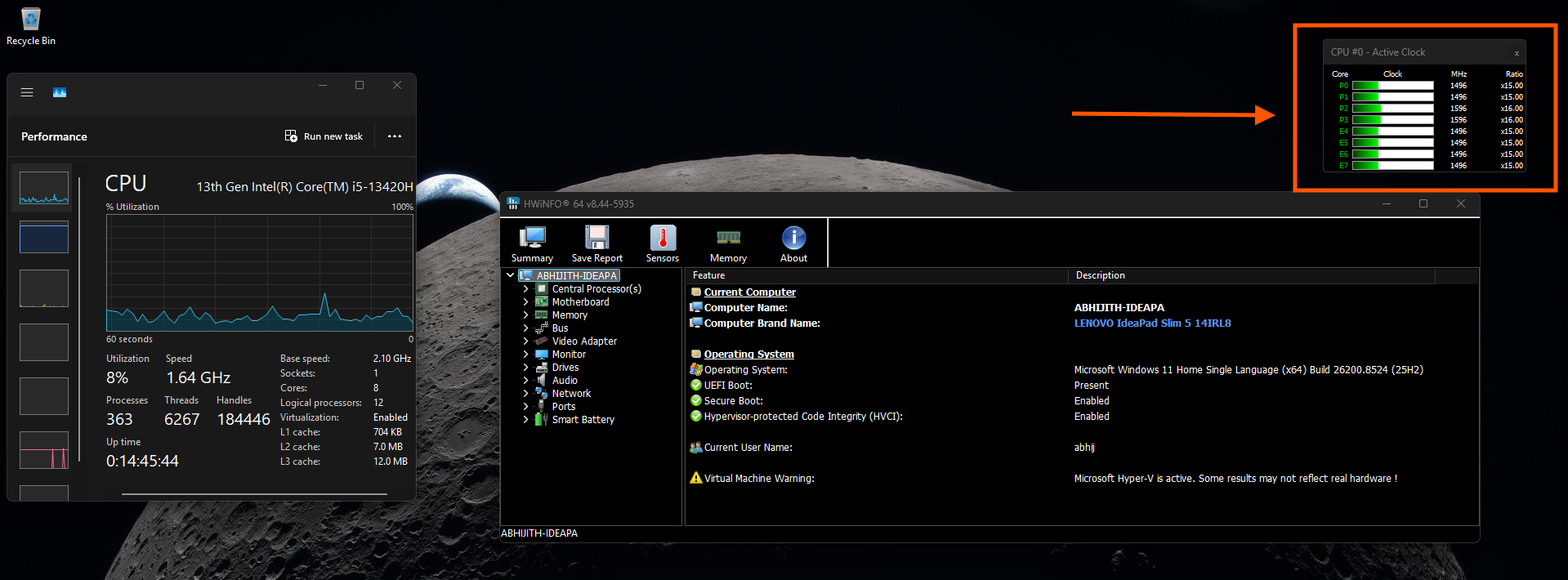
We know that many of you skip the optional update, but if you’re interested in checking out Low Latency Profile, and you haven’t downloaded the update yet, here’s your cue:
Install the May 2026 Optional Update and check CPU usage
Open Settings > Windows Update > Advanced options > Optional updates. In the Optional updates available area, you’ll find the KB5089573 update.
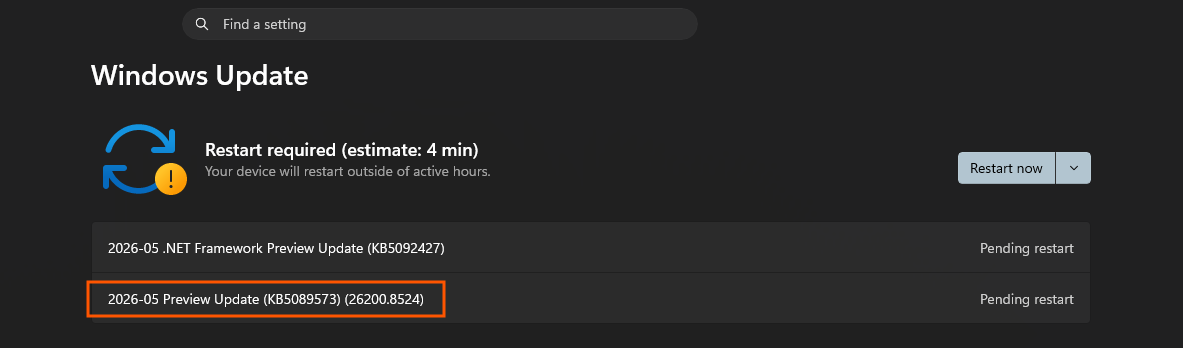
If you decide to skip this preview patch, you’ll get Low Latency Profile in about two weeks when Microsoft bundles it broadly into the mandatory June 2026 Patch Tuesday security release.
Check for Controlled Feature Rollout restrictions
Once your PC reboots with the latest update, open HWiNFO and keep the monitoring tool running to one side of your screen while you open the Start menu, trigger the Windows Search bar, and pull out the Action Center flyout panel.
Here, I have installed the May 2026 optional update, but the core Windows shell experience doesn’t trigger peak CPU usage. I noticed a spike while opening Microsoft Store, but I suspect that it’s due to the app loading its interface. Also, Store launching wasn’t a quick experience.
Essentially, I’m among the vast majority of users who have installed the update, but Low Latency Profile is disabled due to Microsoft’s policy of gradual release to ensure stability (also called CFR).
If you’re among the lucky few who see CPU spikes and, most importantly, a faster or smoother Start menu and other flyouts, then congratulations, you have got Low Latency Profile.
If you don’t notice a CPU spike or faster core experiences, you can easily bypass Microsoft’s deployment queue. As we detailed in our guide on how to turn on Low Latency Profile in Windows 11, you can open an administrative Command Prompt, navigate to your local ViveTool folder, and execute the command vivetool /enable /id:58989092 to force enable Low Latency Profile.
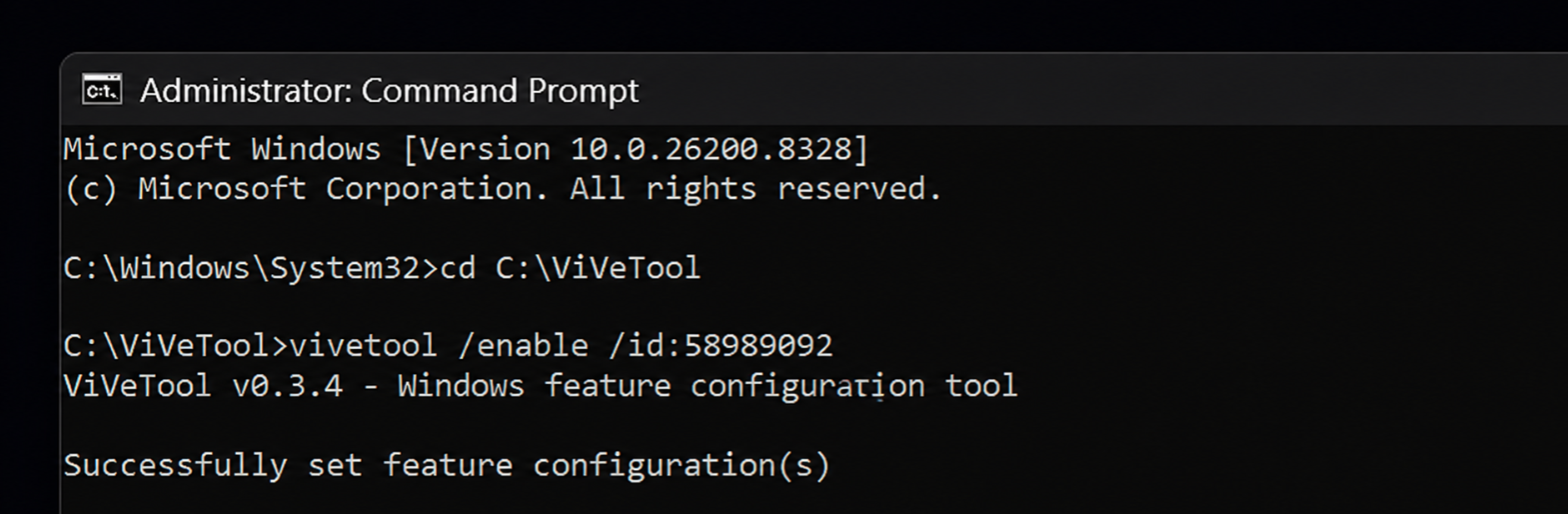
How to test if Low Latency Profile CPU boost is active on your PC
After forcing the feature on via ViveTool and restarting your machine, you can finally verify if the configuration was successful. Open HWiNFO upon landing back on your desktop. You must wait a few minutes for your background startup applications to settle down, as they cause their own CPU spikes.
Once the CPU usage numbers drop back down to a normal, idle state, begin triggering the core Windows 11 shell experiences. Open the Start menu, click into the Windows Search box, and click your taskbar clock to open the Action Center.
If the Low Latency Profile is successfully running, you will observe two simultaneous confirmation signals.
- First, and most importantly, you will feel a distinct smoothness across the interface, with the shell menus popping up instantly without the usual rendering lag.
- Second, your HWiNFO monitoring panel will log an immediate, sharp frequency jump across your active CPU cores every single time you open those specific menus.
Start menu after enabling Low Latency Profile:
Windows Search opens faster after enabling Low Latency Profile:
Action Center is buttery smooth after enabling Low Latency Profile:
As I said before, if your PC is already fast enough, you’ll only notice smoother loading of these core experiences, and hence the relevance of CPU monitoring.
Low Latency Profile behaves differently depending on your system specifications
Earlier, when I tested Windows 11’s hidden Low Latency Profile in a low-powered VM running Insider builds, it yielded immediate, dramatic results.
The hardware response was obvious because the Task Manager would show a massive, sudden CPU spike every single time the system layer was engaged. CPU Boost worked while opening apps, too. Edge, Microsoft Store, and Outlook saw higher CPU utilization in the Task Manager when opened, and lasted for 1 to 2 seconds.
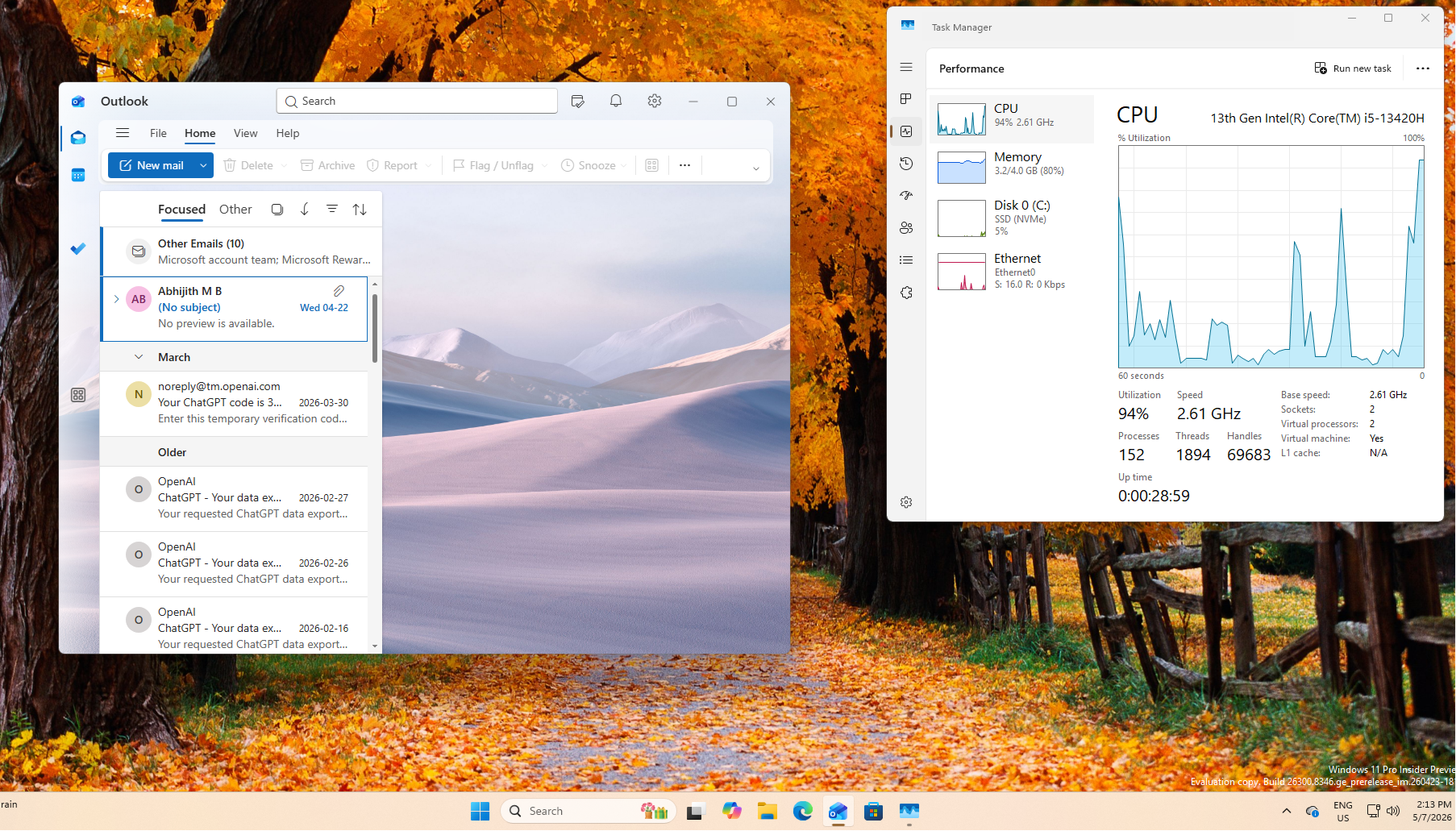
However, when I forced the configuration on my primary daily-driver PC, instead of raw speed, what I noticed was smoothness. I was almost used to the micro-stuttering of the Start menu. So, seeing it glide up smoothly caught me off guard.
More powerful machines may see an even more fluid Start menu and system flyouts, as they were already quick enough. Either way, I like that my PC feels more premium now.
CPU boost is a necessary step forward while Microsoft cleans up its code
There is still an immense amount of unnecessary social media backlash surrounding Low Latency Profile CPU scheduling technique. Many users still continue to dismiss the tool as an unoptimized shortcut.
However, as we previously reported, engineering leads like Scott Hanselman have correctly pointed out that hardware-level CPU boosting is a standard industry practice that maximizes UI responsiveness.
That said, Windows 11 oftentimes feels slower than legacy operating systems like Windows 7 because modern shell elements are bogged down by web-wrapped slop and ad-filled frameworks.
I truly hope that Microsoft continues its commitment to rewriting the Start menu and taskbar using native, lightweight code. Until those foundational software overhauls are complete, the criticisms will continue.
Either way, as of now, Low Latency Profile is a good feature that makes some Windows 11 experiences feel as snappy and responsive as they should be.
The post What actually happens to your CPU when Windows 11’s Low Latency Profile is working appeared first on Windows Latest