Sr. Content Developer at Microsoft, working remotely in PA, TechBash conference organizer, former Microsoft MVP, Husband, Dad and Geek.
158717 stories
·
33 followers

Here’s when Windows 11 26H2 will roll out, and what’s actually new on existing PCs

1 Share

I expect Windows 11 26H2 to ship in October 2026 as an enablement package. Based on past trends, it’ll roll out sometime between the last week of September and the last week of October. Windows 11 25H2 shipped in the last week of September, but versions 24H2 and 23H2 were released in October of their respective years.
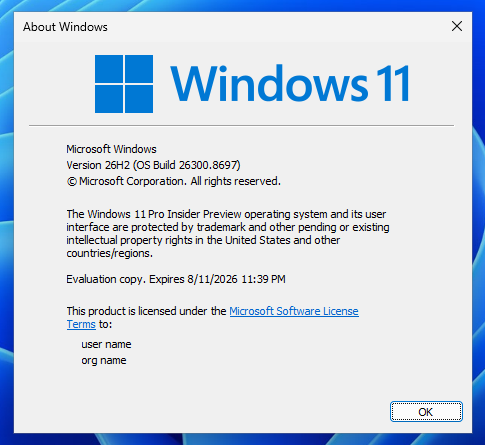
Windows 11 26H2 version numbering

But is there anything new in this year’s annual update? I’d say nothing major in particular.

Windows 11 26H2 is the annual feature update for the operating system, but it doesn’t come with anything exciting. If you’ve read headlines that claim otherwise, you’ve been clickbaited. Windows 11 26H2 exists only to give you another year of servicing, which means more stability for enterprises.

For example, Windows 11 24H2 support ends on October 13, 2026, but Windows 11 25H2 remains supported until October 12, 2027. That means you have only a year of support remaining if you’re using Windows 11 25H2.

At this point, Microsoft can either release a major platform update, which could potentially cause issues, or ship another minor release, 26H2, which provides another year of support until October 2028. The company is choosing the second route for good reason.
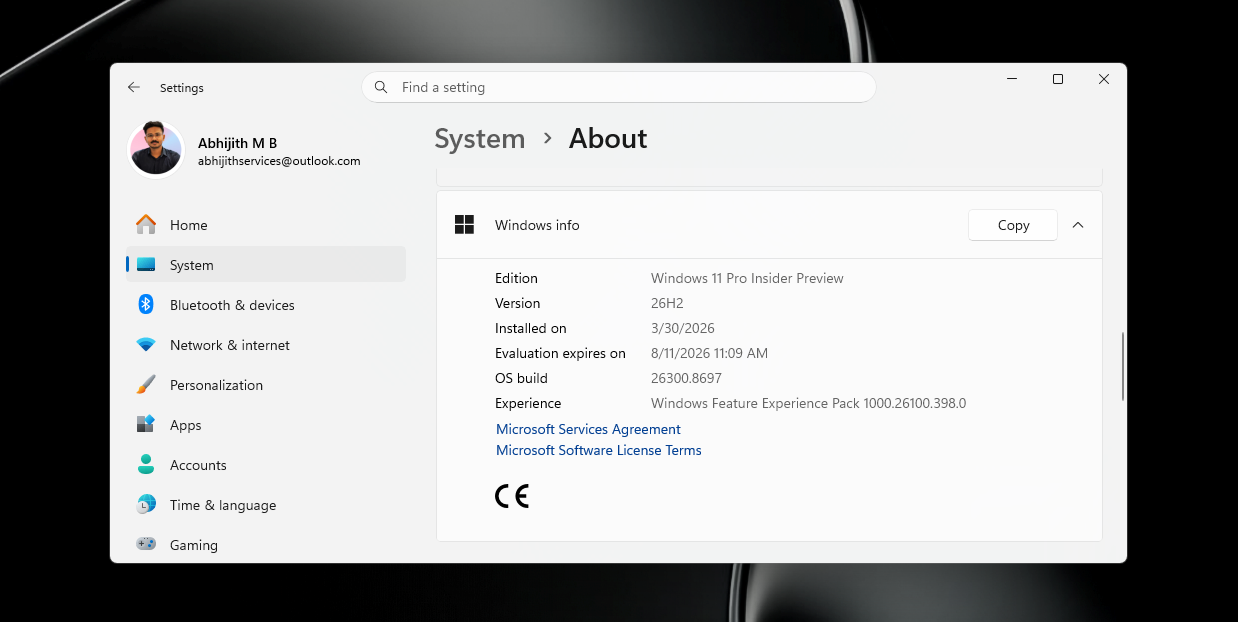
Windows 11 26H2

It’s also true that Microsoft has teased major performance and quality improvements throughout the year, with the biggest changes slated to arrive later this year, but it isn’t locking anything to a specific Windows platform release. That means you’ll get everything whether you run Windows 11 24H2, 25H2, or 26H2.

All quality improvements will ship to everyone via monthly cumulative updates, and you don’t have to wait for any specific Windows feature release like 26H2.

Windows 11 26H2 shares the same servicing model as versions 25H2 and 24H2

Right now, Windows 11 24H2 and 25H2 receive the exact same set of improvements through monthly cumulative updates or even out-of-band releases. That’s because the two releases share the same servicing model, and Windows 11 26H2 is going to become part of it.

If you’re on Windows 11 24H2 or 25H2, you can directly upgrade to Windows 11 26H2, and it’ll take less than five minutes.

Windows Latest previously reported that Windows 11 26H2 is just 174KB, which is only 0.003% of the original Windows 11 24H2 release.

No changes to system requirements

Microsoft says nothing changes with Windows 11 26H2’s system requirements. If you can run Windows 11 24H2, you can also run 26H2, and it’s really that simple.

But if you purchase a new Arm PC, such as one powered by Snapdragon X2 or Nvidia RTX Spark, your PC will run Windows 11 26H1 out of the box, and you cannot move to Windows 11 26H2. You’ll be upgraded to Windows 11 27H2 in the second half of 2027 alongside those already on version 26H2.

What’s actually ‘new’ in Windows 11 26H2?

There are at least two behavioral changes that are exclusive to Windows 11 26H2, and you won’t have them in version 25H2.

The first is related to Windows Backup, which is now being rebranded as “Windows settings backup and restore.” Starting with Windows 11 26H2, Microsoft says it’ll automatically back up your settings and some personal files to the cloud. You’ll need to turn off the feature if you don’t like the idea, as it’ll be enabled by default.
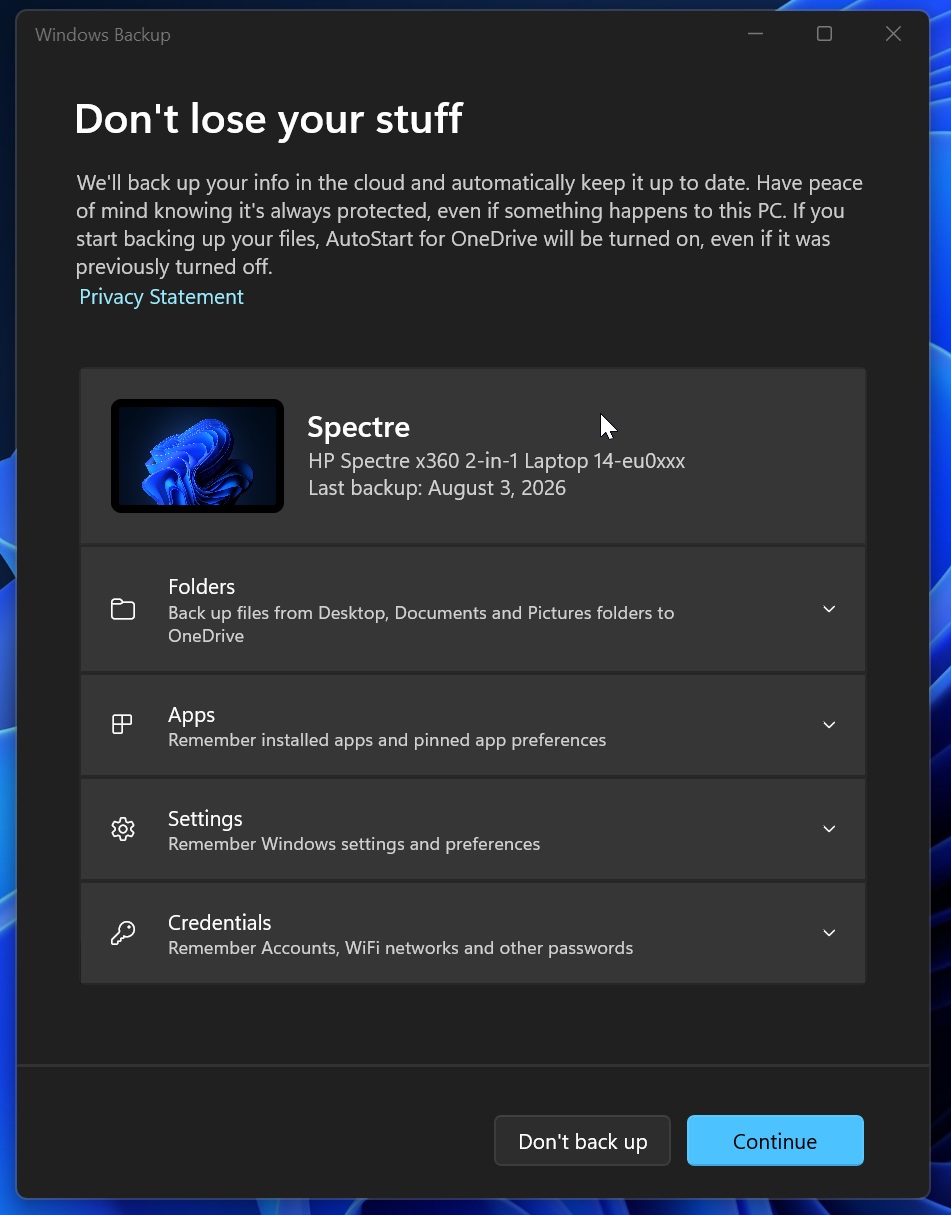
Windows Backup app

“Starting with Windows 11, version 26H2, Windows backup will be enabled by default for eligible devices. Any existing administrator-configured policy (enabled or disabled) will continue to be honored,” Microsoft noted in a support document spotted by Windows Latest.

I also found that only the following items are synced to the cloud:

  • Windows settings
  • Microsoft Store apps list
  • Some personal files or changes, so you can easily move to a new device and resume working. And yes, you still have the choice to restore from a backup or start fresh when setting up Windows 11 on a new PC. This behaviour is not changing.

“Whether upgrading from Windows 10 or refreshing PCs, it delivers a consistent user experience and enhances business continuity through robust backup and rapid recovery capabilities,” the company explained.

Point-in-time restore

Microsoft recently rolled out Point-in-time restore to all existing PCs running Windows 11 25H2 and 24H2, so you might wonder how it’s new in version 26H2. It isn’t. As I said, the two noticeable changes are related to behaviour, not entirely new features.
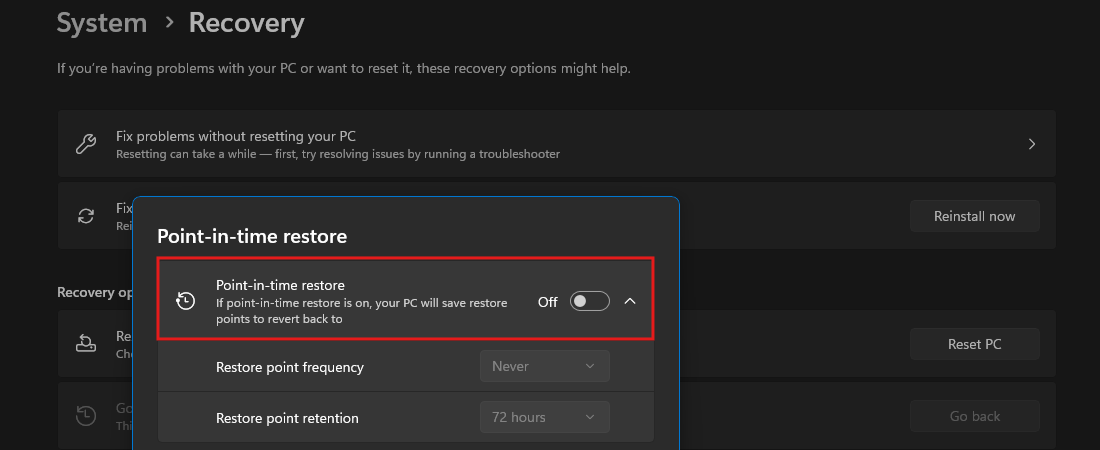
Point-in-time restore toggle

In this case, Microsoft says Point-in-time restore will be turned on by default for everyone with Windows 11 26H2.

For those unaware, Point-in-time restore allows you to create system restore points and even modify their frequency, so you can always restore Windows if something goes wrong, including due to third-party apps or drivers.
Preparing for Point-in-time restore

Until now, Microsoft has been gradually turning on the feature, and it’s entirely disabled on Enterprise PCs, but Windows 11 26H2 makes it the default behaviour for everyone unless you choose to turn it off.
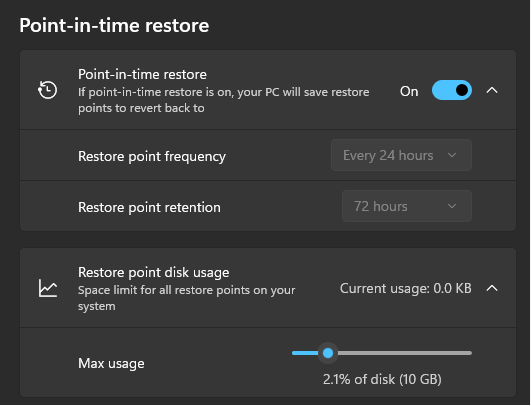
Point-in-time restore storage usage

It is worth noting that Point-in-time restore can use up to 50GB of storage, but you can always adjust how much space it can use and purge previous restore points when you no longer need them.

Windows 11 26H2 is not a full OS upgrade, and it’s a good thing for everyone. If you care about stability, Windows not changing the platform release means you’re in the safe zone, and you don’t have to worry about the next big release breaking anything. On the other hand, if you care about new features, you don’t have to worry, as Microsoft now releases features on a monthly cadence.

The post Here’s when Windows 11 26H2 will roll out, and what’s actually new on existing PCs appeared first on Windows Latest

Read the whole story
alvinashcraft
50 minutes ago
reply
Pennsylvania, USA
Share this story
Delete

You already paid for Microsoft 365, but the Copilot upsell won’t stop, and Microsoft admits it’s by design

1 Share

Microsoft has officially reached the point where it’s so AI-brained that it refuses to take yes for an answer. Even if you’ve already paid for Microsoft 365, Office apps keep pestering you to upgrade for Copilot.

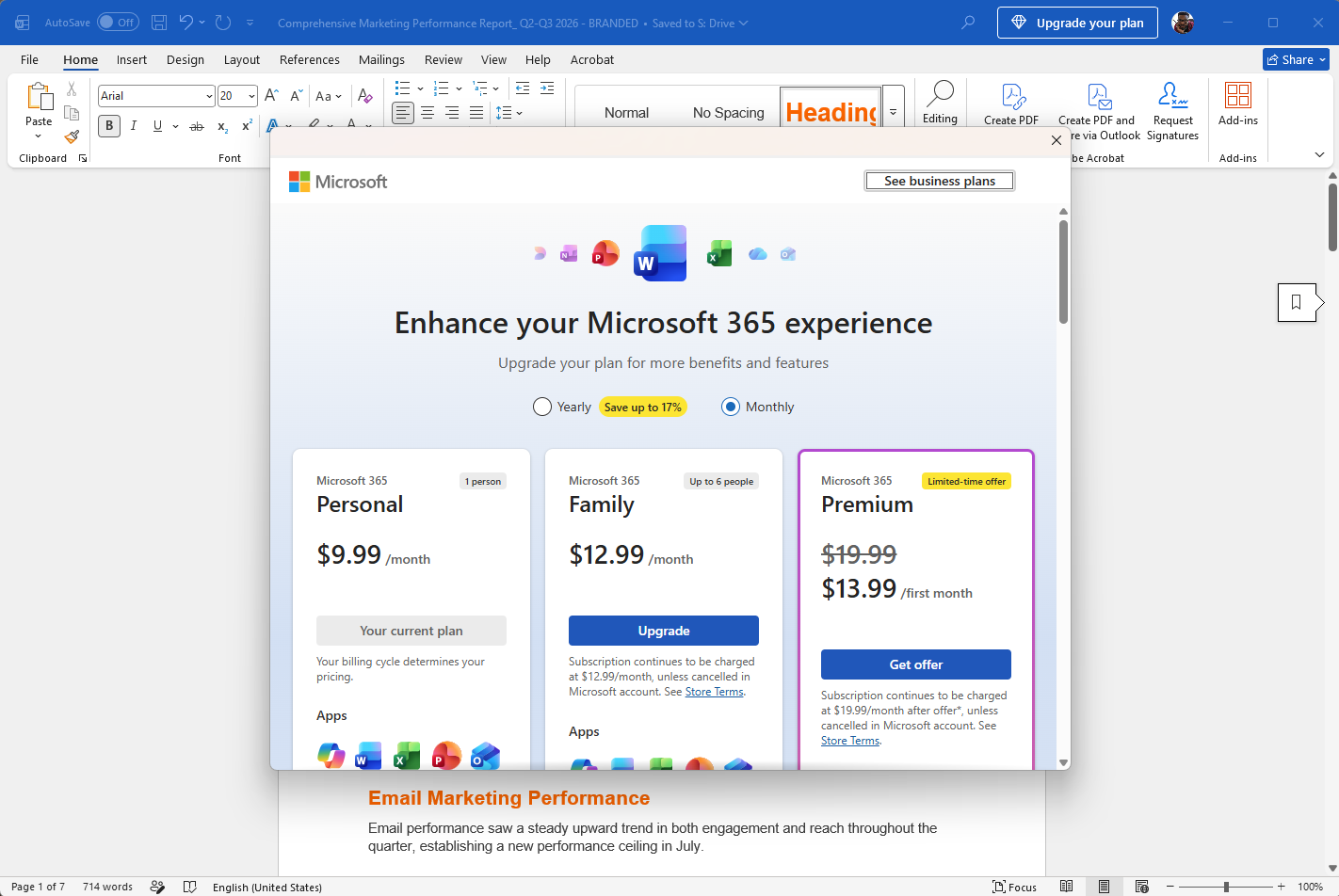
In our tests, Windows Latest observed that opening Word or Excel is now followed by a bright and persistent banner urging you to “Upgrade your plan.” The little banner sits in the title bar like a tiny billboard, and for many people, it refuses to leave, no matter how often you swat at it.

Frustration is bubbling over in both the Microsoft Community forums and on Reddit, with one user summing up the predicament with this question: “Hi everyone, does anyone know how I can get rid of this ‘Upgrade your plan’? I already have an Office license, and my plan is sufficient. I don’t want to pay anything else.”

That thread quickly filled with similar complaints and frustration over the seemingly unkillable upgrade notification. The banner doesn’t go away even if you sign out, sign back in, upgrade to an actual Copilot license, apply Windows Registry hacks, or even reinstall the Office suite.

If you don’t understand what I am talking about, take a look at the screenshot below, specifically the pop-up that appeared after I clicked “Upgrade your plan.”

Microsoft 365 "Upgrade your plan" pop-up in Office apps

You can’t remove the “Upgrade your plan” banner because it’s an intentional “feature” in updated Office apps.

One Microsoft 365 customer even clicked “Upgrade,” started a chat with Microsoft, and wasted approximately ninety minutes before reaching the conclusion that you can’t get rid of the “Upgrade your plan” alert. According to the user, a Microsoft 365 technician deleted files, removed Registry keys, and reinstalled Office, but nothing worked.

In one case, Microsoft Support’s troubleshooting worked for a few hours before the banner rose from the dead.

Desperation to remove the banner has become so intense that it’s backfiring on Microsoft, with one user saying, “I’m having the same issue despite Copilot telling me there are ways to remove it; there apparently are none. I’m cancelling my subscription asap.”

A user who escalated the issue received the clearest answer Microsoft could provide for this Groundhog Day situation: it is basically by design. There is no official process to disable the banner.

Microsoft does not consider the “Upgrade your plan” alert a bug, even if you’ve already upgraded, because it appears by design. That means Microsoft has no plans to add a toggle, Registry key, setting, or policy that you can use to remove it.

It is an intentional upsell mechanism hardcoded into the Office interface by a tone-deaf product manager at the company.

Getting rid of “Upgrade your plan” Copilot upsell in Microsoft 365 apps, temporarily

If the upsell feels less like an eyesore and more like a threat you can’t tolerate, here are some experiments we’ve tried to get rid of the nagging Copilot banner.

For example, you can try signing out of Office and then signing back in. Some users say the banner disappears for a few hours. Unfortunately, it returns. To try your luck, follow these steps:

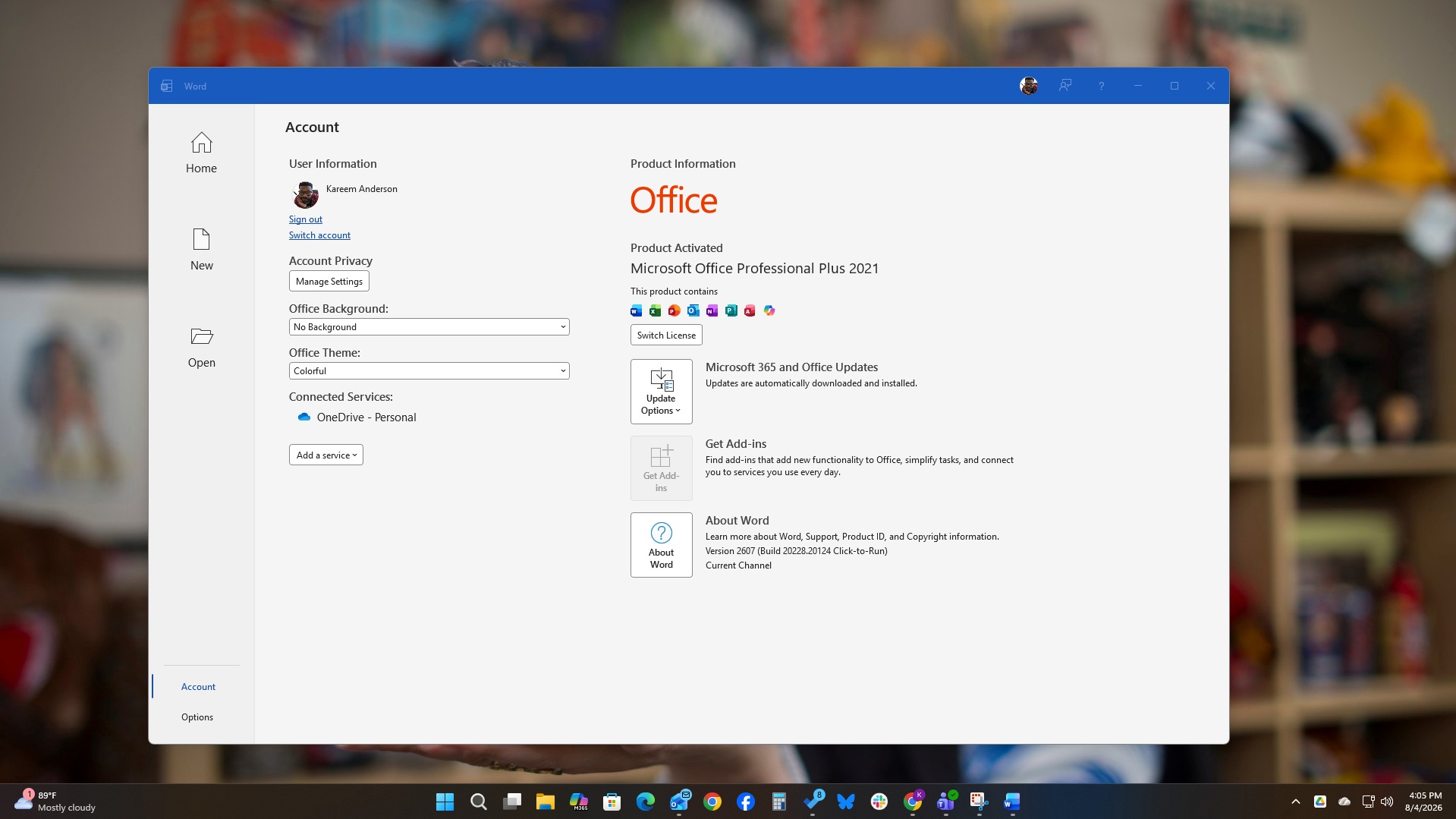
  1. Open any Office app, such as Microsoft Word.
  2. Go to File > Account, click Sign out, and confirm.
  3. Close the app completely.
  4. Reopen it and sign back in with the same Microsoft 365 account.

You can also update the license from the Account page. This has helped some people, but it’s a hit-or-miss process for most who have tried it:

  1. Open Word or Excel.
  2. Go to File > Account.
  3. Look for the Product Information section.
  4. Click Update License or Refresh License.
  5. Restart the app.

You can also try Quick Repair or a full reinstall. These options appear to have the longest success rate, as they can remove the banner until you update Office or sign in again:

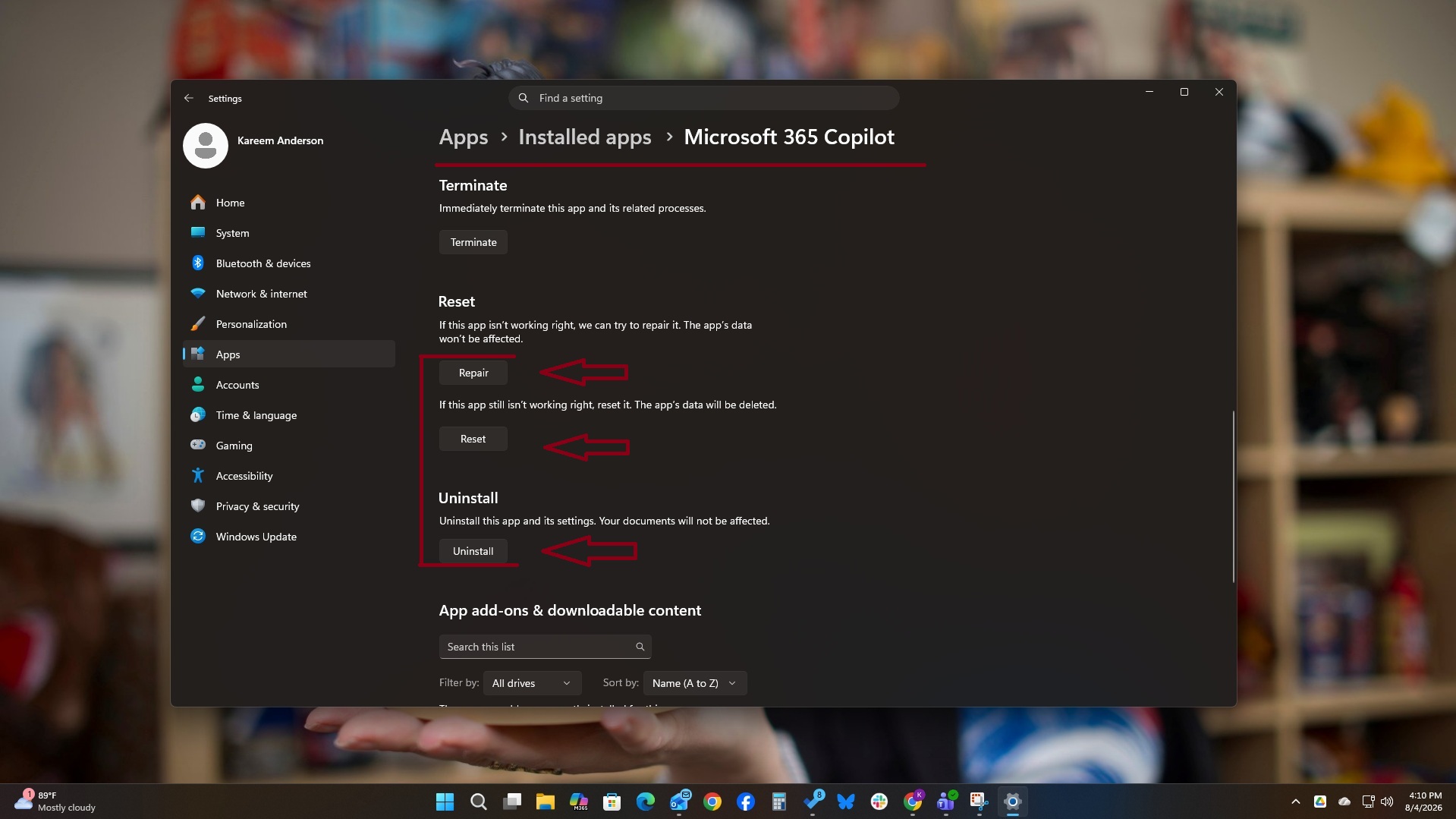
  1. Open Settings in Windows.
  2. Go to Apps > Installed apps.
  3. Find Microsoft 365 or Office.
  4. Click Modify.
  5. Choose Quick Repair.
  6. Let it finish and reopen your apps. This clears cached licensing data, but the banner tends to return after an update or sign-in refresh.

You can also remove Microsoft 365 entirely from Installed apps and reinstall it from Microsoft’s download page. Finally, sign in again. This should reset the upgrade upsell, but it may reappear the following week, and you’ll need to repeat the process.

Last but not least, users are adding their voices and encouraging others to send feedback so that somebody at Microsoft finally pays attention.

Microsoft’s aggressive Copilot upsell is coming at a time when roughly eighty percent of US adults are concerned about AI, and consumer sentiment about the cost of living is at an all-time low. As the cost of living continues to rise, people and businesses are becoming anxious about higher costs, subscription creep, and the feeling that every digital service is inching towards a more expensive tier.

Most users aren’t asking for more AI at this point. They are asking for control, clarity, and a break from relentless monetization. Yet Microsoft thought it was wise to leave the equivalent of a beeping smoke detector in the interface of software that’s already paid for.

Even worse, replacing the batteries won’t stop the smoke detector from beeping. It’s only a matter of time before people move out of the house.

The post You already paid for Microsoft 365, but the Copilot upsell won’t stop, and Microsoft admits it’s by design appeared first on Windows Latest

Read the whole story
alvinashcraft
51 minutes ago
reply
Pennsylvania, USA
Share this story
Delete

Android app developers may be unwittingly sharing their users’ location data with advertisers

1 Share
New findings by the Electronic Frontier Foundation aim to warn app developers that some of the third-party code they place in their apps may also collect their users' location data when they grant permission to the app.
Read the whole story
alvinashcraft
51 minutes ago
reply
Pennsylvania, USA
Share this story
Delete

Built-In Observability for Serverless AI Agents on Azure Functions

1 Share

Azure Functions Agents - the markdown-first runtime that turns a folder of *.agent.md files into a serverless Azure Functions app - now ships with OpenTelemetry tracing built into the runtime itself. Every agent run becomes a real, structured trace in Application Insights: the model used, the session, and every tool call or sub-agent hand-off along the way. None of it requires writing a line of telemetry code in your app.

Click here to create and run a Serverless Agent using Azure Functions

Full visibility, zero code

Bootstrapping an agent app is still two lines:

from azure_functions_agents import create_function_app app = create_function_app()

Turning on export is two settings, no code:

In requirements.txt - 

pip install azurefunctions-agents-runtime[monitor]
In your App Settings -
APPLICATIONINSIGHTS_CONNECTION_STRING=<your-app-insights-connection-string></your-app-insights-connection-string>
 

From there, every run shows up automatically in Application Insights' Agents view, tagged with a consistent set of attributes the runtime adds for you: which agent ran, which model answered, which tools it called, and how the run finished. You don't pick and choose what to instrument - you get the whole run, every time, the same way, regardless of what the agent is doing underneath.

That consistency is what makes the tracing useful for more than debugging. It's also the simplest way to see something that would otherwise happen invisibly inside a single API call.

Example: watching a model decision happen in real time

One good illustration is Model Router - a model you deploy yourself in your Foundry resource, like any other model deployment. Point an agent's model setting at that deployment, and Model Router picks a different underlying LLM per prompt: a smaller model for simple requests, a larger one once a prompt actually needs it.

Normally that choice is invisible - it happens inside one API call. But because Azure Functions Agents traces every run the same way no matter which model is behind it, the decision shows up for free. Same chat session, two prompts:

Prompt

Model Router picked

Why

Easy, one-shot question

gpt-5-mini

Small model is comparable quality for a fraction of the cost.

Complex, multi-step reasoning

gpt-5.4

Router escalates to a larger model once the prompt needs it.

Both requests show gen_ai.request.model = model-router, that's the deployment the agent called. What changes per message is the response attribute, which names whichever model Router actually picked.


Trace for the easy prompt (response model gpt-5-mini)


Trace for the hard prompt (response model gpt-5.4)


Full session in the Agents pane of Application Insights


Nothing here was instrumented specifically for Model Router - this is just what a trace looks like now, for any agent, on any model.

Try it yourself

  1. Add the two settings above to an existing agent app - no code changes needed.
  2. Send a request or two, then open Application Insights' Agents view (or Transaction Search).
  3. Look at what's already there: model, session, tool calls, and timing, all correlated under one trace.

Wrapping up

The point isn't any single scenario - it's that whatever you build next on Azure Functions Agents, from a simple single-model agent to something as dynamic as router-based model selection, you'll be able to see exactly what happened without adding anything yourself. Try it against your own agent and see what's already there.

Resources

Read the whole story
alvinashcraft
53 minutes ago
reply
Pennsylvania, USA
Share this story
Delete

AWS Tools Installer V2 is Now Generally Available

1 Share

If you’ve been managing multiple AWS Tools for PowerShell modules individually, you know how time-consuming installations and updates can be. In this post, we announce the general availability of AWS Tools Installer V2. It minimizes installation time by downloading a single zip file and extracting modules in parallel.

In February 2026, we announced the preview of AWS Tools Installer V2.

V2 improvements

AWS Tools Installer V2 downloads a single zip file from Amazon CloudFront and extracts modules in parallel. This eliminates the need to install hundreds of individually packaged modules.

Installer V2 installs modules by default, so commands are available for immediate use. This also helps avoid module import conflicts that can occur when modules are not all on the same version.

The following example shows how to install all AWS Tools for PowerShell modules by running Install-AWSToolsModule. To reduce the risk of breaking changes, add the -Version parameter. It limits updates to minor versions of V5 of AWS Tools for PowerShell.

Install-AWSToolsModule -Version 5.*

AWS Tools Installer V2 also introduces the self-update commands Install-AWSToolsInstaller and Uninstall-AWSToolsInstaller so you can update the installer module directly without manual steps.

The following example installs the latest minor version updates for AWS Tools Installer V2. Staying on minor versions helps you maintain a stable environment.

Install-AWSToolsInstaller -Version 2.*

Bugs fixed

V2 resolves two key issues:

  1. Previously, latest modules were not installed on systems with discontinued modules. V2 now successfully updates modules that are not discontinued.
  2. During the daily release window, installations sometimes failed because some modules were still being published. V2 avoids this by installing only the module versions that have completed publishing.

New features

  1. Support for Offline Installation: The new -SourceZipPath parameter allows installation from locally staged files in offline or air-gapped environments.
  2. Support for Prerelease Installation: A new parameter called -Prerelease allows installation of preview builds of AWS Tools for PowerShell and AWS Tools Installer.
  3. Installer Update Notifications: When you import AWS Tools Installer, it displays a message notifying you if a new version is available.
  4. Support for Standard Module Removal: AWS Tools Installer now adds metadata so you can remove modules using standard PowerShell commands (Uninstall-Module and Uninstall-PSResource).
  5. Removal of Legacy Modules: AWS Tools Installer V2 supports uninstalling the legacy AWSPowerShell and AWSPowerShell.NetCore modules from the paths listed in the PSModulePath environment variable.
Uninstall-AWSToolsModule -CleanUpLegacyScope 'CurrentUser'
Install-AWSToolsModule -CleanUpLegacyScope 'CurrentUser'

Breaking changes

You must plan for the following potential issues when upgrading:

  1. New download endpoint: AWS Tools Installer V2 uses following endpoint to download zip files: https://sdk-for-net.amazonwebservices.com/ps/. You might need to update your firewall rules to allow access to this endpoint.
  2. Proxy parameters ignored: The -Proxy and -ProxyCredential parameters are now ignored and have no effect. They are still accepted for backward compatibility. To configure proxy settings for your environment, see the PowerShell environment variables documentation. On Windows PowerShell 5.1, downloads use your system proxy settings.
  3. Force parameter behavior change: The -Force parameter is now deprecated and ignored for Uninstall-AWSToolsModule. When running Install-AWSToolsModule -Force, the existing module is overwritten even if the name and version match. To skip interactive confirmation prompts, add -Confirm:$false to the command.
  4. Ignored parameters: The -SkipUpdate, -SkipPublisherCheck, and -AllowClobber parameters are accepted for backward compatibility but no longer have any effect. If your scripts relied on -SkipUpdate to prevent updates, installed modules will now be updated.

Note: The original V1 command behavior is preserved in these additional commands: Install-AWSToolsModuleV1, Uninstall-AWSToolsModuleV1, and Update-AWSToolsModuleV1. You can define an alias for each command to map legacy scripts back to the original functionality after upgrading to V2. For example:

Set-Alias -Name Install-AWSToolsModule -Value Install-AWSToolsModuleV1

Getting started

For prerequisites and full setup details, see Installing the AWS Tools for PowerShell.

Install the latest version of AWS Tools Installer V2 from the PowerShell Gallery (PSGallery) by running the following command:

Install-Module -Name AWS.Tools.Installer -MinimumVersion 2.0.0 -MaximumVersion 2.9.999 -Repository PSGallery

View help documentation

Once installed, run the following command to list the available AWS Tools Installer commands:

Get-Command -Module AWS.Tools.Installer

Run Get-Help to view documentation for any AWS Tools Installer command. For example:

Get-Help Install-AWSToolsModule -Full

Conclusion

AWS Tools Installer V2 is now generally available with faster installation, parallel extraction, and improved reliability. To get started, install V2 from PSGallery using the commands in this post.

Provide feedback

We’re looking forward to hearing what you think about the new version of AWS Tools Installer. Please share any feedback you have at the AWS Tools for PowerShell GitHub repository.

Read the whole story
alvinashcraft
53 minutes ago
reply
Pennsylvania, USA
Share this story
Delete

SwiftDotNet — It Started With "What If I Could Just Write SwiftUI in C#?"

1 Share
A shower thought about writing SwiftUI from C# turned into a Kotlin shim for Jetpack Compose, and then into the realization that the shim was never the point. One C# view tree, a diff engine, and a patch protocol — now rendering as real SwiftUI, real Compose, real GTK4, real WinUI, real DOM, and a from-scratch SkiaSharp toolkit that paints the whole thing itself. Plus 28 real controls built on it, what writing your own looks like on each backend, and an honest accounting of how far the Skia renderers still have to go. Think .NET Comet, but without the MAUI underneath it.
Read the whole story
alvinashcraft
53 minutes ago
reply
Pennsylvania, USA
Share this story
Delete
Next Page of Stories