MSBuild binary logs (.binlog files) contain a wealth of information about
your build — every property evaluation, target execution, task invocation,
error, and warning. But navigating that data manually can be overwhelming,
especially when you’re debugging a complex multi-project solution. What if your
AI coding assistant could do the investigation for you?
Today we’re introducing the Microsoft Binlog MCP Server, a
Model Context Protocol (MCP) server that
gives AI assistants like GitHub Copilot direct access to your build logs. It
parses .binlog files and exposes 15 specialized tools that enable AI-driven
build failure diagnosis, property tracing, performance analysis, and build
comparison — all through natural language conversation.
Why MCP for Build Logs?
The Model Context Protocol is an open
standard that lets AI assistants call external tools in a structured way. By
wrapping MSBuild binary log analysis in an MCP server, we give AI assistants
the ability to:
- Investigate build failures by querying errors, warnings, and their full
project/target/task context
- Trace property origins to understand where a property got its value
- Analyze performance bottlenecks by identifying the slowest projects,
targets, and tasks
- Compare two builds to spot differences in properties and packages
- Read embedded source files captured during the build
Instead of manually scrolling through the
MSBuild Structured Log Viewer, you can simply ask
your AI assistant questions like “Why did my build fail?” or
“What’s making my build slow?”
15 Tools at Your AI Assistant’s Disposal
The Microsoft Binlog MCP Server provides tools organized into four
categories:
Build Investigation
| Tool |
What It Does |
binlog_overview |
Build status, duration, project count, error/warning counts |
binlog_errors |
Build errors with full project, target, task, file, and line context |
binlog_warnings |
Build warnings, filterable by warning code |
binlog_search |
Full-text search using the StructuredLog Viewer search DSL |
binlog_projects |
List all projects with build status and duration |
binlog_properties |
MSBuild property values (curated defaults or filtered) |
binlog_items |
MSBuild items like PackageReference, Compile, and more |
binlog_imports |
Full import chain of .props and .targets files |
binlog_explain_property |
Traces where a property gets its value — which file, target, or task set it |
Embedded Files
| Tool |
What It Does |
binlog_files |
List or read source files captured during the build |
binlog_search_files |
Search text across all embedded source files |
Performance Analysis
| Tool |
What It Does |
binlog_expensive_projects |
Slowest projects by exclusive duration |
binlog_expensive_targets |
Slowest targets across the entire build |
binlog_expensive_tasks |
Slowest tasks across the entire build |
Build Comparison
| Tool |
What It Does |
binlog_compare |
Diff two binlogs — compare properties, packages, and more |
Getting Started
The easiest way to get started is through the
.NET Agent Skills repository. The
dotnet-msbuild plugin bundles the Microsoft Binlog MCP Server along with
curated skills and agents for MSBuild build investigation and optimization.
Pick the section below that matches your development environment.
Visual Studio
Visual Studio supports MCP servers through GitHub Copilot’s agent mode
(Visual Studio 17.14 or later). After installing the dotnet-msbuild
plugin, the Microsoft Binlog MCP Server is automatically discovered by
Copilot Chat in agent mode. Open the Copilot Chat window, switch to
Agent mode, and the binlog_* tools become available for any
conversation about a .binlog file in your solution.
Visual Studio Code
In VS Code, enable plugin support and add the marketplace to your
settings.json:
{
  "chat.plugins.enabled": true,
  "chat.plugins.marketplaces": ["dotnet/skills"]
}
Then install the dotnet-msbuild plugin from the marketplace — the
Binlog MCP Server is configured automatically.
Prefer to wire up the MCP server directly? Add it to your
.vscode/mcp.json:
{
  "servers": {
    "binlog-mcp": {
      "type": "stdio",
      "command": "dotnet",
      "args": ["tool", "run", "Microsoft.AITools.BinlogMcp"]
    }
  }
}
To pre-load a specific binlog at startup, pass the --binlog argument:
{
  "servers": {
    "binlog-mcp": {
      "type": "stdio",
      "command": "dotnet",
      "args": ["tool", "run", "Microsoft.AITools.BinlogMcp", "--", "--binlog", "msbuild.binlog"]
    }
  }
}
Command Line (Copilot CLI / Claude Code)
For terminal-based AI assistants such as GitHub Copilot CLI or Claude
Code, install the plugin directly from the dotnet/skills marketplace:
/plugin marketplace add dotnet/skills
/plugin install dotnet-msbuild@dotnet-agent-skills
Restart your assistant and the binlog_* tools are ready to use. You can
verify they loaded with /skills.
Tip
To generate a binary log, add
/bl to any
dotnet build,
dotnet test, or
dotnet pack command — for example:
dotnet build /bl.
Example: Diagnosing a Build Failure
Once the MCP server is running and your AI assistant has access to a
.binlog file, you can investigate build issues conversationally.
Here’s a typical workflow:
- Generate a binlog: Run
dotnet build /bl to capture a binary log
- Ask your assistant: “My build failed. Can you investigate
msbuild.binlog and tell me what went wrong?”
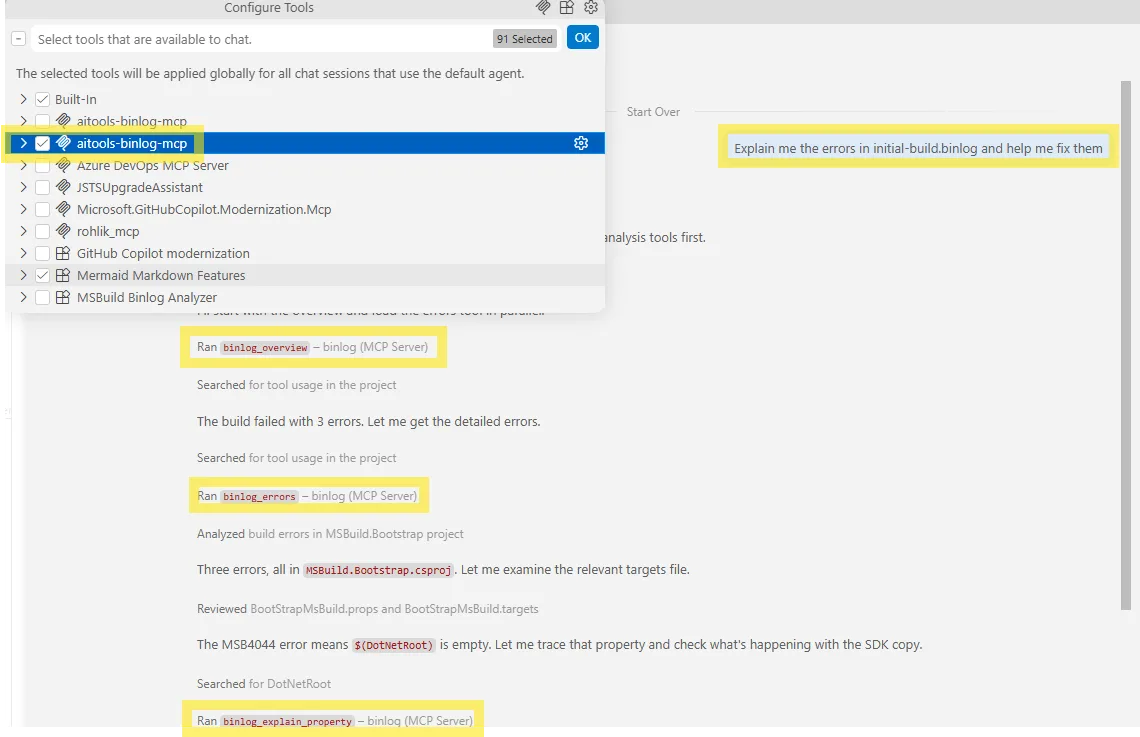
- The AI investigates: It calls
binlog_overview to get the high-level
status, then binlog_errors to retrieve the actual errors with full
context, and may use binlog_explain_property or binlog_search to trace
the root cause
- Get actionable guidance: The assistant synthesizes findings and suggests
concrete fixes
For performance investigations, the AI uses the binlog_expensive_projects,
binlog_expensive_targets, and binlog_expensive_tasks tools to identify
bottlenecks and recommend optimizations.
The screenshot below shows this workflow in action inside VS Code.
Try It Yourself: Compare Two Builds
Here’s a great way to take the MCP server for a spin right now. Pick a
repository you build regularly — your own product, or an open-source
project like dotnet/msbuild or
microsoft/testfx — and capture
two binary logs from different versions or configurations:
# Build version A
git checkout main
dotnet build /bl:build-a.binlog

# Build version B (a different branch, SDK, or configuration)
git checkout my-feature-branch
dotnet build /bl:build-b.binlog
Then ask your AI assistant:
“Compare build-a.binlog and build-b.binlog. What MSBuild properties
and package versions changed, and did any of those changes affect build
performance?”
Behind the scenes, the assistant calls binlog_compare to diff properties
and packages, then uses binlog_expensive_projects and
binlog_expensive_targets on both logs to correlate the changes with
timing differences — turning what used to be a tedious side-by-side log
comparison into a single conversation.
Built on StructuredLogger
Under the hood, the Microsoft Binlog MCP Server uses the
MSBuild Structured Log Viewer
library — the same engine that powers the popular MSBuild Structured Log Viewer
desktop app. The binlog_search tool supports the full
StructuredLog Viewer search DSL,
including node type filters ($error, $warning, $task, $target,
$project), hierarchical scoping with under(), and exact phrase matching
with quoted strings.
Telemetry
The server emits anonymous usage telemetry (tool name, latency, result size,
success/failure) to help us improve the product. It follows the standard .NET
SDK approach: on by default, single opt-out via the
DOTNET_CLI_TELEMETRY_OPTOUT environment variable.
export DOTNET_CLI_TELEMETRY_OPTOUT=1
No binlog content, file paths, or raw error messages are ever collected — only
filenames are HMAC-SHA256 hashed for correlation.
What’s Next
The Microsoft Binlog MCP Server is in preview and we’re actively improving
it. We’d love your feedback — please file issues in the
dotnet/skills repository.
If you’re working with MSBuild builds and using AI coding assistants, give it
a try. Let your AI do the heavy lifting of build investigation while you focus
on writing code.
The post AI-Powered MSBuild Investigation with the Microsoft Binlog MCP Server appeared first on .NET Blog.
 Log in



 ).
).