Sr. Content Developer at Microsoft, working remotely in PA, TechBash conference organizer, former Microsoft MVP, Husband, Dad and Geek.
151871 stories
·
33 followers

What is Microsoft Copilot Chat?

1 Share

Key Takeaways:

  • Microsoft Copilot Chat is an AI-powered chat interface integrated into Microsoft 365, enabling natural language interaction for productivity tasks.
  • It works across apps like Word, Excel, PowerPoint, Outlook, and Teams, helping users draft, summarise, and automate tasks.
  • Copilot Chat supports both Web Mode (public data) and Work Mode (organisation data), ensuring secure and compliant responses.
  • Mobile users can access Copilot Chat via dedicated apps for iOS and Android, offering voice interaction and on-the-go assistance.

What is Microsoft Copilot Chat and how does it help productivity? Let’s find out.

Why is Microsoft Copilot Chat useful?

Microsoft Copilot Chat offers diverse functionality within the Microsoft 365 ecosystem and benefits users in several ways.

Microsoft Office Application assistance

Microsoft has integrated Copilot into apps such as Word, Excel, PowerPoint, Outlook, OneNote, and Teams. In each application, Microsoft Copilot Chat acts as an AI assistant, helping end users work more efficiently. It also stands alone as a separate interface as shown in the image below.
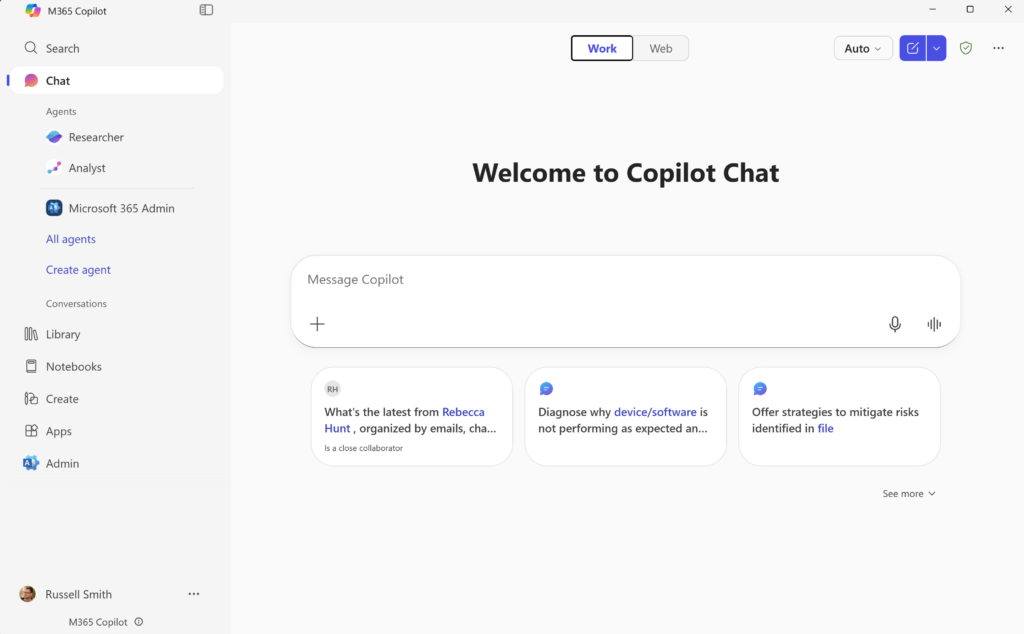
Microsoft Copilot Chat
Microsoft Copilot Chat (Image Credit: Brien Posey/Petri.com)
  • In Word, Copilot can draft documents or assist with proofreading. 
  • In Excel, it can reformat data, such as splitting addresses into separate columns. 
  • In PowerPoint, Copilot can automatically build presentations from documents. 
  • In Teams, it summarises meetings and creates follow-up items. 
  • In Outlook, Copilot helps strike the right tone in emails before sending.

For more on productivity tips, check out How to Use Microsoft Copilot in Word and Microsoft Copilot Excel Guide.

Copilot also helps users manage information overload. For example, by summarising lengthy documents or analysing spreadsheets.

Research

Copilot Chat is extremely useful for research. It leverages both public data and organisational data, such as SharePoint files or Teams meeting notes. 

  • Web Mode: Uses public web data. 
  • Work Mode: Uses organisational data like Outlook emails, SharePoint documents, and Teams chats. 

Users can even attach files to queries for summarisation or brainstorming.
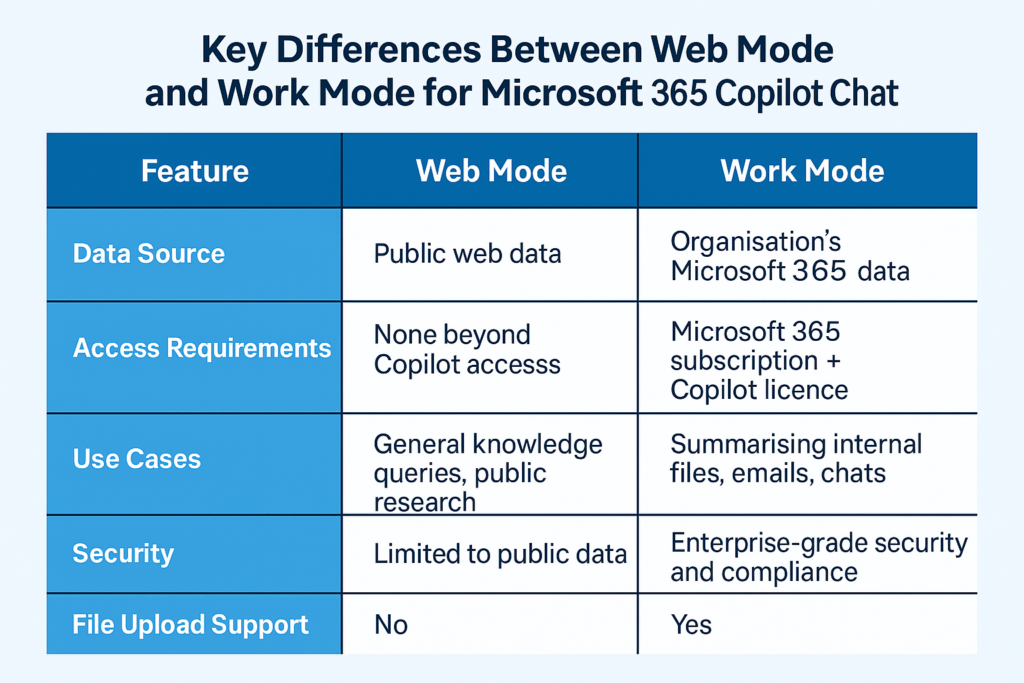
Key differences between Web Mode and Work Mode for Microsoft Copilot Chat
Key differences between Web Mode and Work Mode for Microsoft Copilot Chat (Image Credit: Brien Posey/Petri.com)

Microsoft 365 Copilot typically has access to the same data as the user who is using it. As such, a user who is trying to do research can ask Copilot relevant questions and Copilot will answer the user based on both public data and the organization’s data. As an example, the results might reference files that are stored within a SharePoint library or perhaps notes from a Microsoft Teams meeting.

The data that is used when formulating a response to a user’s prompt varies based on various factors, such as the user’s licenses and the mode that is being used.

When a user is working in Web mode, the user opens Copilot Chat in Microsoft Edge or in one of the other supported tools and enters a query. The AI chat responds by examining public, Web based data.

In Work Mode, Copilot uses the organization’s data when formulating its response. This may include things like Outlook emails, SharePoint documents, or Microsoft Teams chats. The user also has the ability to attach a file directly to their query, and have Copilot use the file upload as the basis for its response. This can be extremely useful for a user who wants to create a summary of a document’s key points or who perhaps wants to create an AI-generated FAQ section to go along with a document. Copilot can even use its knowledge of the document to help a user to brainstorm ideas.

Explore Microsoft Copilot in Teams for collaboration insights.

Task automation

Microsoft Copilot can also be useful for automating tasks. By using or creating agents, organizations can automate various tasks, As an example, an agent may be able to generate a report or trigger an automated workflow. Organizations that want to build their own custom copilots can do so by using Microsoft Copilot Studio.

Learn more in Copilot Studio Guide.

Simplified compliance

One of the most important benefits to using Copilot Chat is that because Copilot Chat is a part of the Microsoft 365 ecosystem, it adheres to the same permissions and offers the same enterprise data protection and Microsoft security as Microsoft 365 itself. This is extremely important for protecting an organization’s data.

If a user were to try to use another AI chat tool, then the chat experience could compromise the organization’s data. For instance, file uploads to the third-party AI chat tool could cause the AI to ingest the organization’s private data. That data may then be used to further train the AI and could be exposed to users outside of the organization as a result.

Licensing and pricing tiers for Microsoft Copilot Chat

To use Microsoft Copilot Chat, organisations and individuals need specific licences:

CategoryLicence / TierDescription
Base RequirementMicrosoft 365 SubscriptionCopilot Chat is available only to users with an active Microsoft 365 subscription, including Business or Enterprise plans.
Additional RequirementMicrosoft 365 Copilot LicenceRequired in addition to the base subscription. Unlocks advanced AI features, including Work Mode integration with organisational data.
Pricing TierMicrosoft 365 Copilot for EnterprisePriced per user per month. Offers full integration with Microsoft 365 apps such as Word, Excel, PowerPoint, Outlook, and Teams.
Pricing TierMicrosoft 365 Copilot for BusinessDesigned for small and medium-sized businesses (SMBs). Provides similar functionality to the Enterprise version at a slightly lower cost.
Pricing TierAdd-on LicencesCopilot can be purchased as an add-on to existing Microsoft 365 subscriptions, depending on the organisation’s licensing model.
Licensing and pricing tiers for Microsoft 365 Copilot Chat

Pricing varies by region and plan type. For the latest details, visit Microsoft Copilot Pricing.

The Copilot Chat mobile experience

Copilot Chat is available via a dedicated mobile app for iOS and Android and integrated into Microsoft 365 mobile apps like Word and Excel. 

  • Mobile users can summarise emails, draft content, and ask questions on the go. 
  • Copilot supports file analysis and summarisation on mobile devices. 
  • New text-to-speech capabilities allow voice interaction for hands-free productivity.

While the Copilot mobile app might not be quite as full featured as the desktop version, it is great for helping users to perform various tasks while they are away from their computer.

Mobile users often find that the mobile version of Copilot Chat is useful for helping them to catch up quickly. A user might for instance, ask Copilot to read and summarize their Outlook emails.

The mobile version of Copilot is also great for answering questions. Users can ask Copilot general knowledge questions, and the Microsoft AI will respond with answers taken from the Internet. Additionally, a properly licensed user can ask questions about specific files or messages and receive an answer right on their device.

The mobile version of Copilot Chat can also potentially be helpful for helping a user to draft content or brainstorm ideas. Although a mobile device might not be the best platform for authoring a lengthy document, Copilot can be helpful if inspiration strikes while a user is on the go.

Copilot Chat can also help users to review content on their mobile device. A user may for instance, use their iOS or Android device to send a Word document or even a PDF file to Copilot for analysis. Copilot can then answer questions about the file, or even provide the user with a file summary.

More recently, Microsoft has begun to roll out text to speech capabilities for Copilot, which will allow users to verbally converse with Copilot as though it were a person rather than an AI powered assistant. such capabilities should prove to be extremely useful to users who primarily interact with Copilot through the Copilot app. Such users will be able to perform various tasks using nothing more than their voice. Rather than relying on an on-screen keyboard, users will be able to simply tell Copilot what they want to do, with Copilot responding verbally to such prompts.

For mobile tips, see Microsoft Copilot Mobile.

Frequently asked questions

What is Microsoft Copilot Chat used for? 

It’s an AI-powered chat interface that helps users draft content, summarise documents, automate tasks, and answer questions across Microsoft 365 apps.

Is Microsoft Copilot Chat secure? 

Yes, it follows Microsoft 365’s enterprise security standards, ensuring compliance and data protection.

Can I use Microsoft Copilot Chat on mobile? 

Absolutely. Copilot Chat is available via a dedicated app for iOS and Android and integrated into Microsoft 365 mobile apps.

Do I need a special licence for Copilot Chat? 

Yes, you need a Microsoft 365 subscription and a Copilot licence to access Work Mode features.

The post What is Microsoft Copilot Chat? appeared first on Petri IT Knowledgebase.

Read the whole story
alvinashcraft
4 minutes ago
reply
Pennsylvania, USA
Share this story
Delete

Agentic AI, MCP, and spec-driven development: Top blog posts of 2025

1 Share

As the editor of the GitHub Blog, I get a front-row seat to everything that’s published here. As we wrap up 2025, I’m marking the occasion by looking back at the most popular blog posts of the year as well as some of my favorite interviews.

While AI models were the big topic of 2024, this year saw AI become your coding partner. AI agents and agentic tools were top among our most popular posts of the year.

Below, you’ll find some of our biggest announcements of the year, plus some examples of how to use these features.

Cozy up at your desk or on your couch, grab a blanket and a mug of coffee, and let’s dive in. Here’s what you read the most in 2025:

Agent mode

GitHub Copilot agent mode, announced in February, can iterate on its own code, recognize errors, and fix its mistakes in real time, right in your IDE. More simply, it’s a problem solver that understands your intent, builds a solution, and iterates until it gets it right. 

You also read all about it in our agent mode 101 guide. Here you can learn what agent mode is, how to use it, some common use cases, and how to get started.

Coding agent

In May, the GitHub Copilot coding agent was announced. Embedded directly into GitHub, the agent starts its work when you, for example, assign a GitHub issue to Copilot or prompt it in VS Code. Coding agent will explore the repository, write code, pass tests, and open a pull request for your review.

Agent HQ

Wrapping up a year of AI agents, during GitHub Universe in October, GitHub announced an ecosystem for all of your agents to work together. Agent HQ unites all of your agents on a single platform. Coding agents from Anthropic, OpenAI, Google, Cognition, xAI, and more became available directly within GitHub as part of your paid GitHub Copilot subscription.

MCP

Model Context Protocol (MCP) makes it simple for AI agents and tools to talk to each other. Each MCP server is like an ingredient in your AI stack, whether it’s Playwright for browser automation, Notion for knowledge access, or GitHub’s own MCP server with over a hundred tools. 

In April, we rolled out Agent Mode with MCP support to all VS Code users. In September, the GitHub MCP Registry launched as your new home base for discovering MCP servers, making it easier for you to build, evaluate, and even find the MCP servers you need.

Spec-driven development

Instead of coding first and writing docs later, in spec-driven development, you start with specifications, or specs. Specs become the shared source of truth. Spec Kit, our open source toolkit for spec-driven development, provides a structured process to bring spec-driven development to your coding agent workflows, making your specification the center of your engineering process.

Conversations around the fire…

Throughout the year, we brought you stories about people and projects shaping the industry. Here are some of my personal favorites and ones you can watch, read, or listen to as you curl up by the fire.

🎉 Did you know Git turned 20 this year? To celebrate, we sat down with Linus Torvalds, the creator of Git and Linux, to discuss how it forever changed software development.

🤖 It was the breach that broke the internet. Log4Shell proved that open source security isn’t guaranteed and isn’t just a code problem. Hear the untold story from Christian Grobmeier, one of the maintainers of the open source project Log4j.

🎧 Home Assistant became the most important project in so many houses. Hear about the paradox that makes Home Assistant compelling to developers from maintainer Franck Nijhof (better known as Frenck).

See you in 2026!

And that’s just scratching the surface! Explore the blog to see more exclusive interviews, career advice, open source highlights, and more of the tutorials you love from 2025.

We’ll be here next year to share more. Stay tuned—we can’t wait for you to see what’s next!

Stay connected in the New Year! Discover tips, technical guides, and best practices in our newsletter just for developers. Subscribe now >

The post Agentic AI, MCP, and spec-driven development: Top blog posts of 2025 appeared first on The GitHub Blog.

Read the whole story
alvinashcraft
4 minutes ago
reply
Pennsylvania, USA
Share this story
Delete

The Problem With Letting AI Do the Grunt Work

1 Share
The consulting firm CVL Economics estimated last year that AI would disrupt more than 200,000 entertainment-industry jobs in the United States by 2026, but writer Nick Geisler argues in The Atlantic that the most consequential casualties may be the humble entry-level positions where aspiring artists have traditionally paid dues and learned their craft. Geisler, a screenwriter and WGA member who started out writing copy for a how-to website in the mid-2010s, notes that ChatGPT can now handle the kind of articles he once produced. This pattern is visible today across creative industries: the AI software Eddie launched an update in September capable of producing first edits of films, and LinkedIn job listings increasingly seek people to train AI models rather than write original copy. The story adds: The problem is that entry-level creative jobs are much more than grunt work. Working within established formulas and routines is how young artists develop their skills. The historical record suggests those early rungs matter. Hunter S. Thompson began as a copy boy for Time magazine; Joan Didion was a research assistant at Vogue; directors Martin Scorsese, Jonathan Demme, and Francis Ford Coppola shot cheap B movies for Roger Corman before their breakthrough work. Geisler himself landed his first Netflix screenplay commission through a producer he met while making rough cuts for a YouTube channel. The story adds: Beyond the money, which is usually modest, low-level creative jobs offer practice time and pathways for mentorship that side gigs such as waiting tables and tending bar do not. Further reading: Hollow at the Base.

Read more of this story at Slashdot.

Read the whole story
alvinashcraft
5 minutes ago
reply
Pennsylvania, USA
Share this story
Delete

Microsoft added “click on desktop to open Bing” to the Bing Wallpaper app, then accidentally hid the option to turn it off on Windows 11

1 Share

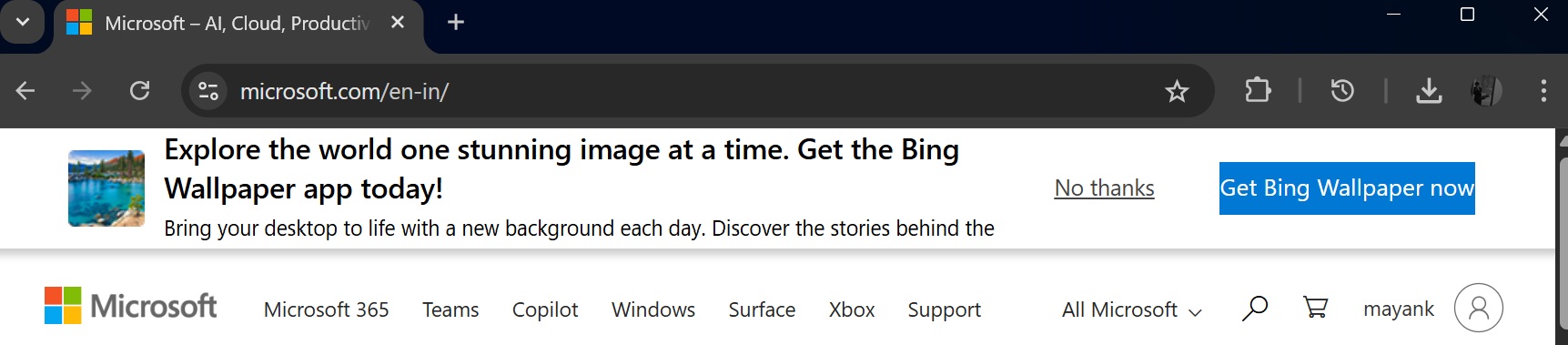
Bing Wallpaper is an optional app, but when you visit Microsoft’s websites, including the main website (Microsoft.com), you’ll be prompted to try Bing Wallpaper. Many people like Bing wallpapers, and they often end up downloading the app, which has a shady feature that opens Bing.com out of nowhere.

Microsoft advertises Bing on its website
Microsoft advertises the Bing Wallpaper app across its websites

The Bing Wallpaper app is not new, as it has been around for almost a decade, and it’s similar to Windows Spotlight. The Bing Wallpaper app automatically rotates your desktop background. There’s a bubble at the top right corner of the desktop that lets you change the wallpaper or learn more about it on Bing.com.

Bing wallpaper app

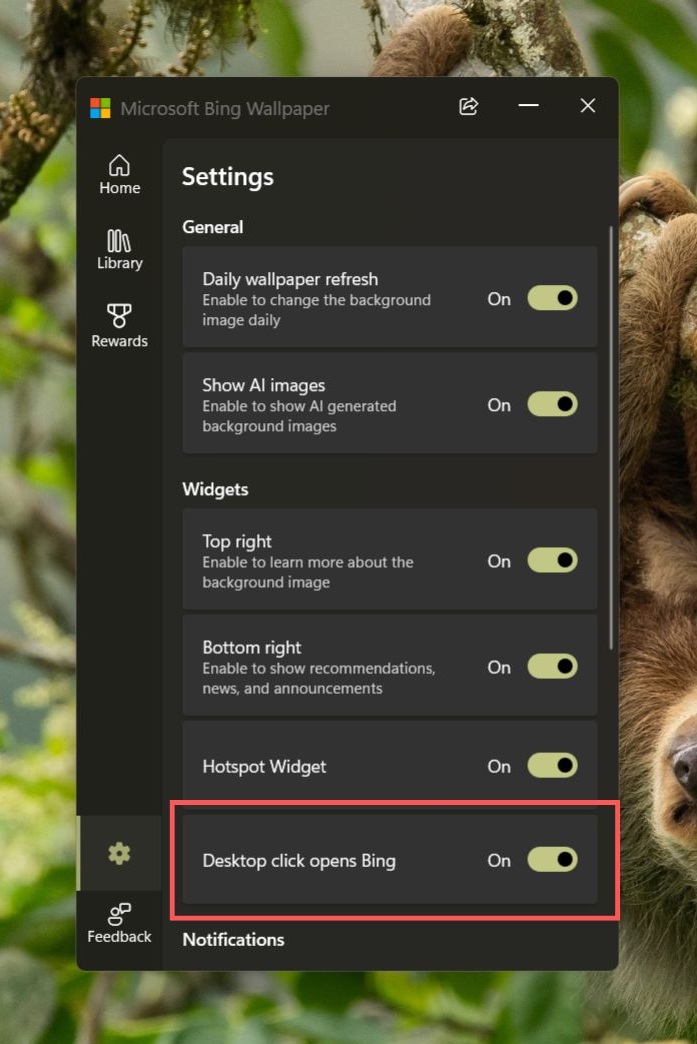
Nobody has a problem with the bubble like the above, but more recently, Windows Latest spotted that the Bing Wallpaper app quietly added a toggle “Desktop click opens Bing. It’s turned on by default.

Bing wallpaper app

This means if you click anywhere on the desktop, Windows will open Bing.com with more details about the wallpaper in your default browser. Windows Latest reproduced this behaviour across all our PCs with Bing Wallpaper app installed:

In our tests, Windows Latest observed that the Bing Wallpaper app opens Bing.com if you click anywhere on the desktop once every 24 hours. In other words, if you tap on the desktop with the toggle enabled several times, you won’t be redirected to Bing.com. That only happens once in 24 hours or sometimes even longer.

It’s a smart tactic, and Microsoft does not want to annoy you to the extent that you end up recognizing that it’s the Bing Wallpaper app that’s sending you to Bing.com when you tap on the desktop. This is why this approach is very well-regulated, and some of you might not even realize how you end up on Bing.com out of nowhere.

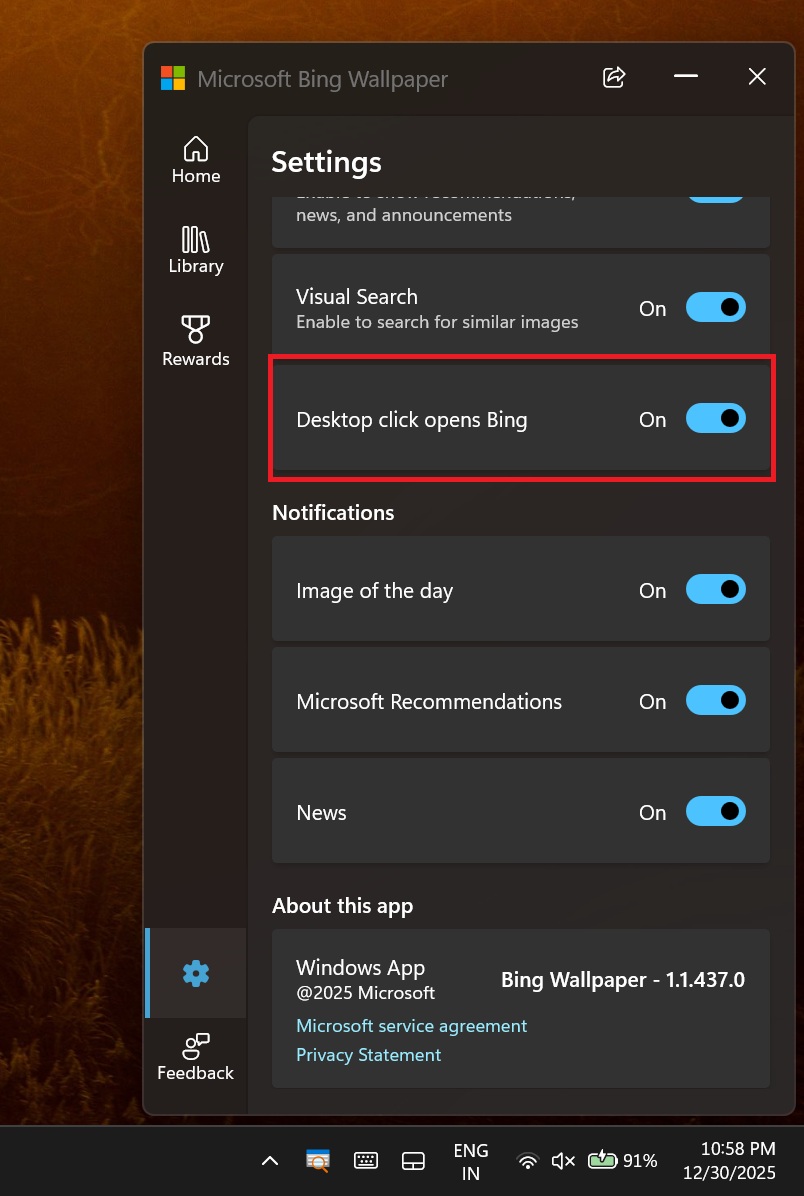
You can turn off “Desktop click opens Bing,” but there’s a catch

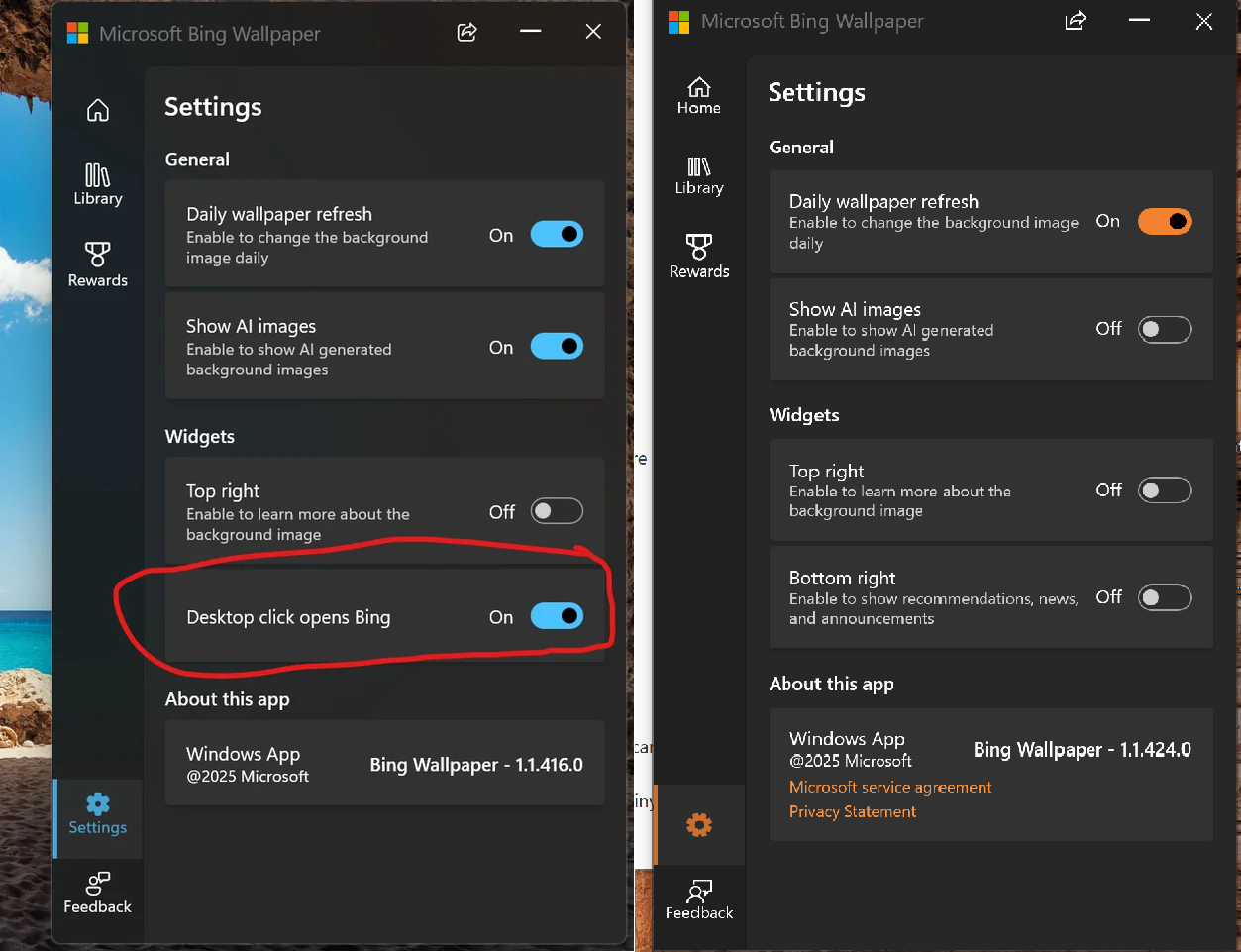
We noticed that the Bing Wallpaper app’s settings page does have a toggle that lets you disable “Desktop click opens Bing.” But some users told us that they don’t see the option to turn off this “feature.”

That means if you don’t have the toggle for some reason, you won’t be able to block the Bing Wallpaper app from sending you to Bing.com when you click anywhere on your desktop.

Desktop click opens Bing

I don’t think Microsoft would intentionally hide the toggle that turns off “Desktop click opens Bing,” so it’s likely a bug. We’re also seeing reports on Reddit (1, 2), so it’s not isolated to just some of the people who got in touch with Windows Latest.

Bing desktop opens Bing toggle is missing
“Desktop click opens Bing” toggle is missing in the Bing Wallpaper app

Microsoft may have already rolled out a fix, but if you don’t see the toggle, you will need to reinstall Bing Wallpaper, and that might help. Also, you don’t have to use the Bing Wallpaper app at all, as Windows Spotlight for the desktop is more than enough.

I use Windows Spotlight for the desktop, and you should switch to it as well

Windows Spotlight is also powered by Bing, and if you love Bing Wallpaper, you are going to like Windows Spotlight too. In fact, it’s better because it does not trick you into opening Bing.com in your browser.

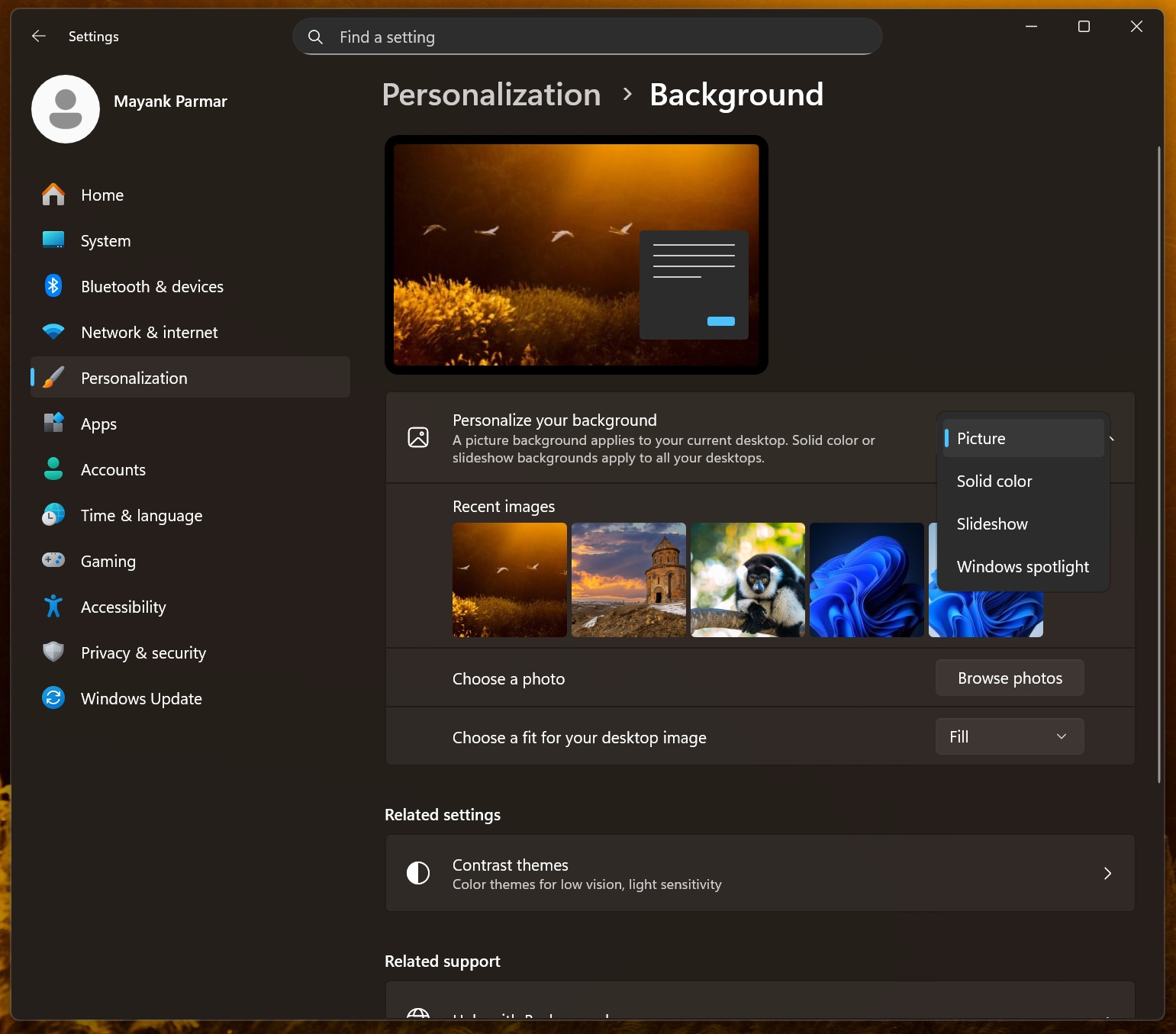
To configure Bing-powered Spotlight, open Settings > Personalization > Background, and choose “Spotlight” under “Personalize your background.”

Spotlight feature in Windows 11 personalization settings

This will automatically switch you to a Bing Wallpapers-like experience without hurting your performance, sending MSN alerts or tricking you into opening Bing.com.

The post Microsoft added “click on desktop to open Bing” to the Bing Wallpaper app, then accidentally hid the option to turn it off on Windows 11 appeared first on Windows Latest

Read the whole story
alvinashcraft
6 minutes ago
reply
Pennsylvania, USA
Share this story
Delete

How Microsoft is betting on AI agents in Windows, dusting off a winning playbook from the past

1 Share
The cover of Microsoft’s 1990 annual report, showing Microsoft Word for Windows 3.0, reflected the company’s confidence as Windows was emerging as a true platform.

[Editor’s Note: Agents of Transformation is an independent GeekWire series and 2026 event, underwritten by Accenture, exploring the people, companies, and ideas behind the rise of AI agents.]

It was “like bringing a Porsche into a world of Model Ts.” 

That’s what Microsoft said in its 1990 annual report about the shift from MS-DOS to Windows. But the bigger breakthrough for the company wasn’t the graphical interface. It was Windows’ ability to serve as a platform for applications made by others.

Windows 3.0, released that year, made third-party software easier to find and launch, and offered developers a clear bargain: build to Microsoft’s specs, and your software would become a first-class citizen on the computers that were arriving “on every desk and in every home,” as the company’s original mission statement put it. 

Thirty-five years later, AI feels less like a car and more like a rocket ship. But Microsoft is hoping that Windows can once again serve as the platform where it all takes off.

A new framework called Agent Launchers, introduced earlier this month as a preview in the latest Windows Insider build, lets developers register agents directly with the operating system. They can describe an agent through what’s known as a manifest, which then lets the agent show up in the Windows taskbar, inside Microsoft Copilot, and across other apps.

The long-term promise for Windows users is autonomous assistants that operate on their behalf, directly on their machines. Beyond routine tasks like assembling a PDF or organizing files, agents could monitor email and calendars to resolve scheduling conflicts, or scan documents across multiple apps to pull together a briefing for an upcoming meeting.

Achieving that level of autonomy requires more than just a clever interface. It will take deep, persistent memory that operates more like the human brain.

Microsoft CEO Satya Nadella this week framed AI agents as a new layer of computing infrastructure that requires greater engineering sophistication. Windows is one of the places where Microsoft is attempting to implement that vision. (GeekWire File Photo / Kevin Lisota)

“We are now entering a phase where we build rich scaffolds that orchestrate multiple models and agents; account for memory and entitlements; enable rich and safe tools use,” Microsoft CEO Satya Nadella wrote in a blog post this week looking ahead to 2026. “This is the engineering sophistication we must continue to build to get value out of AI in the real world.”

Elements of this are already emerging elsewhere.

  • Google’s Gemini and Anthropic’s Claude offer desktop-style agents through browsers and native apps, with extensions that can read pages, fill forms, and take limited actions on a user’s behalf.
  • Amazon is developing “frontier agents” aimed at automating business processes in the cloud. 
  • Startups like Seattle-based Vercept are building standalone agentic apps that coordinate work across tools. 

But Microsoft’s Windows team is betting that agents tightly linked to the operating system will win out over ones that merely run on top of it, just as a new class of Windows apps replaced a patchwork of DOS programs in the early days of the graphical operating system. 

Microsoft 365 Copilot is using the Agent Launchers framework for first-party agents like Analyst, which helps users dig into data, and Researcher, which builds detailed reports. Software developers will be able to register their own agents when an app is installed, or on the fly based on things like whether a user is signed in or paying for a subscription.

The risks posed by PC agents

The parallels to the past only go so far. Traditional PC applications ran in their own windows, worked with their own files, and didn’t touch the rest of the system for the most part.

“Agents are going to need to be able to scratchpad their work,” Microsoft CTO Kevin Scott said recently on the South Park Commons Minus 1 podcast, explaining that agents will need to retain a history of user interactions and tap into the necessary context to solve problems.

Agents are meant to maintain this context across apps, ask follow-up questions, and take actions on a user’s behalf. That requires a different level of trust than Windows has ever had to manage, which is already raising difficult questions for the company.

Microsoft acknowledges that agents introduce unique security risks. In a support document, the company warned that malicious content embedded in files or interface elements could override an agent’s instructions — potentially leading to stolen data or malware installation.

To address this, Microsoft says it has built a security framework that runs agents in their own contained workspace, with a dedicated user account that has limited access to user folders. The idea is to create a boundary between the agent and what the rest of the system can access.

The agentic features are off by default, and Microsoft is advising users to “understand the security implications of enabling an agent on your computer” before turning them on.

A different competitive landscape

Even if Microsoft executes perfectly, the landscape is different now. In the early 1990s, Windows became dominant because developers flocked to the platform, which attracted more users, which attracted more developers. It was a virtuous cycle, and Microsoft was at the heart of it.

But Windows isn’t the center of the computing world anymore. Smartphones, browsers, and cloud platforms have fragmented the landscape in ways that didn’t exist back then. Microsoft missed the mobile era almost entirely, and the PC is now one screen among many.

In the enterprise, Microsoft has better footing. Azure, Microsoft 365 Copilot, and a growing ecosystem of business-focused agents give the company a strong position, competing against Google, Amazon, OpenAI and others for cloud-based AI agents and services.

Agent Launchers is a different bet — an attempt to make Windows the home for agents that serve individual users on their own machines. That’s a harder sell when the PC is competing with phones, browsers, and cloud apps for people’s attention. Microsoft can build the platform, but it can’t guarantee that developers will show up the way they did 35 years ago.

And unlike in the 1990s, Microsoft can’t count on users to embrace what it’s building. There’s a growing sentiment that these AI capabilities are being pushed into Windows not because users want them, but because Microsoft needs to justify its massive AI investments. 

In October, for example, Microsoft announced new features including “Hey Copilot” voice activation, a redesigned taskbar with Copilot built in, and the expansion of “Copilot Actions” agentic capabilities beyond the browser to the PC itself. 

“They’re thinking about revenue first and foremost,” longtime tech journalist and Microsoft observer Ed Bott said on the GeekWire Podcast at the time. The more users rely on these AI features, he explained, the easier it becomes for the company to upsell them on premium services.

There is a business reality driving all of this. In Microsoft’s most recent fiscal year, Windows and Devices generated $17.3 billion in revenue — essentially flat for the past three years. 

That’s less than Gaming ($23.5 billion) and LinkedIn ($17.8 billion), and a fraction of the $98 billion in revenue from Azure and cloud services or the nearly $88 billion from Microsoft 365 commercial.

By comparison, in fiscal 1995, five years after the launch of Windows 3.0, Microsoft’s platforms group (which included MS-DOS and Windows) represented about 40% of its total revenue of $5.9 billion. Windows was the growth engine for the company.

Windows is unlikely to play that kind of outsized role again. But AI integration is the company’s best bet to return the OS to growth. Whether that ultimately looks like a restored Porsche or a rocket ship on the launchpad probably doesn’t matter as much as keeping it out of the junkyard.

Read the whole story
alvinashcraft
6 minutes ago
reply
Pennsylvania, USA
Share this story
Delete

Why Developers Are Ditching Frameworks for Vanilla JavaScript

1 Share
vanilla

Everyone’s tired, and framework fatigue isn’t just a meme anymore: It’s a collective burnout. Developers who once raced to master React, Vue and Svelte are now quietly returning to the simplicity they left behind: Vanilla JavaScript.

The web’s pendulum is swinging back towards minimalism. The rise of native browser APIs, performance-conscious development and the AI-assisted coding wave have made plain JavaScript not only viable again, but also liberating. It’s the hangover cure after years of bloat, abstractions and npm dependency nightmares.

The Framework Era’s Breaking Point

For years, frameworks were the default. They promised order, scalability and community support. But as each framework evolved, so did its complexity. Bundlers grew heavier, build times ballooned and the average “Hello World” project required megabytes of dependencies before a single line of code even ran. Developers began to ask: Is all this scaffolding really worth it?

The problem wasn’t frameworks themselves; it was the culture that grew around them. New frameworks emerged monthly, each claiming to fix what the last one broke. Companies refactored entire products just to keep up with the shifting ecosystem. The result? Endless churn, technical debt disguised as innovation, and developers trapped in a loop of constant relearning.

In 2025, the realization hit: The web doesn’t need another layer. It needs a reset. And that reset came in the form of Vanilla JavaScript.

Native APIs Have Grown Up

The modern browser is no longer the janky sandbox it used to be. Over the past few years, APIs like Fetch, web components and ES Modules have matured into production-grade tools that replace what frameworks once offered. Tasks that once required React hooks or state management libraries now run smoothly using native solutions and a few lines of clean code.

The web components standard, in particular, changed the game. It gave developers the modularity and encapsulation of a framework, without locking them into someone else’s architecture. Combined with Shadow DOM, custom elements and template literals, developers could now build reusable, self-contained widgets that worked anywhere.

This newfound maturity meant developers could finally build dynamic, reactive and maintainable interfaces using only what browsers already shipped. The “framework tax” of dependencies, build tools and boilerplate was no longer mandatory. Vanilla JS wasn’t retro — it was efficient again.

Performance as the New Currency

The web now runs on speed. Users expect near-instant interactions, and search algorithms punish sluggish pages. Framework-heavy apps, despite their sophistication, struggle to deliver consistent performance, especially on mobile. Developers have rediscovered that the best optimization is not adding another optimization library — it’s writing less code.

Vanilla JavaScript re-entered the mainstream again in 2025, mainly because apps start faster, render faster and debug easier. Without massive bundles, hydration scripts or reconciliation algorithms, load times plummet. Every kilobyte saved is a user retained. The shift is pragmatic: A 50ms gain in responsiveness is worth more than the syntactic sugar of JSX or reactive bindings.

The pendulum has swung toward “framework-free zones.”

This doesn’t mean frameworks are dead — they still dominate enterprise environments — but the pendulum has swung toward “framework-free zones” for projects where agility and performance trump legacy and abstraction. The hangover cure wasn’t about rebellion. It was about clarity.

AI Tools Make Simplicity Powerful Again

Ironically, AI accelerated the return to simplicity. Developers now use AI-powered assistants to generate boilerplate, debug and suggest clean native code. The more direct the syntax, the more effective the AI becomes. Frameworks, with their proprietary conventions and layers of abstraction, often confuse these systems.

With AI handling repetitive patterns, developers no longer need frameworks for productivity shortcuts. A simple prompt can scaffold a responsive UI or implement event handling directly in Vanilla JS, skipping the framework’s mental overhead entirely. Suddenly, the old argument — “frameworks save time” — no longer holds.

Moreover, AI-aided refactoring has made untangling legacy frameworks easier. Teams can migrate incrementally, replacing framework components with native equivalents. It’s not about nostalgia for the early web — it’s a calculated return to fundamentals in an age of intelligent tooling.

The Rise of Microfrontends and No-Build Architectures

A growing number of modern projects have adopted microfrontend principles: small, independent UI modules that load independently and communicate through shared contracts.

This modular shift also aligns with modern container security practices, where isolated units can be deployed and updated with tighter control and minimal surface exposure.

Likewise, this philosophy fits perfectly with Vanilla JS. Without centralized build systems or complex dependency trees, developers can push updates modularly and maintain flexibility across teams.

The ultimate goal is no build step at all.

The no-build movement complements this. Tools like ESBuild and Vite have simplified compilation to the point of invisibility, but the ultimate goal is no build step at all. Native module imports make that vision real. A developer can push updates directly from their editor to production without waiting for a pipeline to transpile or bundle.

This shift has redefined what “lightweight” really means. A modern Vanilla JS project in 2026 isn’t primitive — it’s surgical. It does exactly what’s needed, nothing more. In a world obsessed with speed and control, that’s not just elegance. It’s a competitive advantage.

Learning Curve Fatigue and Developer Autonomy

Developers are exhausted. Every few months, another framework promises salvation, only to replace one abstraction with another. The cognitive overhead of staying “current” has become unsustainable. Vanilla JavaScript offers a relief valve — a universal foundation that doesn’t expire with the next GitHub announcement.

You don’t need to memorize a new hook system, state API or directive syntax. You just need to understand the language. This rediscovery of autonomy has brought back creative ownership to coding. Developers can focus on solving problems, not memorizing syntax patterns.

And as education caught up, JavaScript bootcamps and universities began emphasizing fundamentals again. The result: fewer developers dependent on frameworks and more devs capable of reasoning about performance, structure and behavior at the core level. The reset is cultural as much as technical.

The Ecosystem Rebalances

The return to Vanilla JS doesn’t spell extinction for frameworks, but it does redefine their purpose. Frameworks are evolving into optional layers, rather than defaults. They exist to solve specific, large-scale problems rather than being baked into every landing page and widget.

The ecosystem is coalescing around native standards rather than proprietary syntax.

React, Vue and Svelte are quietly trimming fat, leaning into interoperability. The ecosystem is coalescing around native standards rather than proprietary syntax. Framework authors now design with “progressive adoption” in mind — meaning developers can opt in, not be locked in.

This rebalancing mirrors what’s happened in other tech domains. Just as DevOps became less about tools and more about culture, frontend development in 2026 is less about what you use and more about how efficiently you use it. Vanilla JS isn’t a rejection; it’s a recalibration.

Conclusion

The framework hangover isn’t permanent — it’s a wake-up call. Developers finally realize that progress isn’t about stacking abstractions, but mastering the fundamentals beneath them. Vanilla JavaScript, once dismissed as “too bare,” has evolved into the quiet powerhouse of a leaner web.

In 2026, writing in Vanilla JS doesn’t mean you’re going backwards. It means you’re building forward — with clarity, control and a codebase that will still make sense in five years. The frameworks will keep evolving, the tools will keep multiplying, but the cure remains the same: Strip it back to what actually runs the web.

The post Why Developers Are Ditching Frameworks for Vanilla JavaScript appeared first on The New Stack.

Read the whole story
alvinashcraft
7 minutes ago
reply
Pennsylvania, USA
Share this story
Delete
Next Page of Stories