Sr. Content Developer at Microsoft, working remotely in PA, TechBash conference organizer, former Microsoft MVP, Husband, Dad and Geek.
159830 stories
·
33 followers

Anthropic’s new browser tool doesn’t actually run a browser

1 Share
Abstract digital art of glowing cyan and magenta data particles flowing along curved paths on a dark background, representing network traffic and cloud infrastructure.

Anthropic launched a new Browser Use tool that gives Claude a structured view of a web page in addition to what is visually rendered. Announced Thursday, the tool uses the page’s accessibility tree to help Claude find and interact with specific elements directly rather than having to work out where they are on the screen.

Browser Use is part of a broader Anthropic release that also brings Computer Use, the Skills API and Files API into general availability. Developers can access the browser tool through the Claude API using browser_toolset_20260801.

Browser Use is part of a broader Anthropic release that also brings Computer Use, the Skills API and Files API into general availability.

The change gives Claude a more direct way to interact with a web page. Instead of working out a button’s position from a viewport image and targeting coordinates such as x: 640, y: 320, Claude can receive a reference such as ref_3 tied to that element and use it when it wants to act.

Page references replace coordinates

Computer Use can operate across an entire desktop by looking at screenshots and sending mouse coordinates and keyboard commands. Browser Use works within the browser itself, where it can use page structure that would be difficult to recover reliably from pixels alone.

When Claude calls read_page, the developer’s executor returns a text representation of the accessibility tree, in which elements such as links, buttons, and text boxes can be tagged with references. If Claude later wants to click a button represented by ref_3, it can send that reference along with the requested operation rather than trying to calculate where the button is on the screen.

That said, if the tab navigates to a new page or the page changes enough, a reference that pointed to a button a moment ago may no longer work. The API will not catch that on its own, so the executor has to recognize when the reference no longer matches the underlying element, reject the action and have Claude read the page again before continuing.

Batching cuts model calls

Playwright, for example, can represent a page as an ARIA snapshot and locate elements by role rather than coordinates. At the same time, Microsoft’s Playwright MCP server already exposes structured accessibility snapshots with references a model can use to identify elements. The concepts line up closely with Browser Use, but the protocols do not: Playwright MCP speaks MCP, while Anthropic’s tool uses its own client-toolset protocol, so developers would still need an adapter that translates Claude’s requests into Playwright actions and returns the results in the format Claude expects.

Puppeteer offers many of the same building blocks, exposing the browser’s accessibility tree via Accessibility.snapshot() and providing APIs for controlling Chrome and Firefox. A developer could use those APIs for navigation or page reads, then maintain Anthropic’s reference mappings on top.

A developer could use those APIs for navigation or page reads, then maintain Anthropic’s reference mappings on top.

Slightly confusing, an unrelated open-source project also called Browser Use runs AI browser agents against Chromium through the Chrome DevTools Protocol. Despite the shared name, it has no connection to Anthropic’s tool and comes with its own agent loop and browser abstractions, so connecting the two would still require integration work.

Several browser actions can happen in one turn

Anthropic is also reducing the back-and-forth between Claude and the browser by allowing multiple actions to be requested in a single model turn. Now actions can arrive together as several tool_use blocks. The application executes them in order and sends the results back together, avoiding another model call between every click and keystroke. Anthropic says that can lower latency and costs, particularly as workflows scale from a handful of interactions to dozens or hundreds.

That matters more as browser tasks get longer. Cheaper models alone will not solve the token cost problem in agentic workflows, so cutting unnecessary model calls is another way to reduce costs.

If Claude has to return to the model after every click or keystroke, a long browser task can quickly rack up model calls. Batching cuts out some of that back-and-forth by letting Claude request several actions at once, but the browser still has to carry them out in order because each one depends on what happened before it. If Claude asks to click a button, fill in a field, and submit a form, for example, the executor cannot simply move on to the next step if that first click fails, because everything that follows is now based on a page state Claude never reached.

Batching cuts out some of that back-and-forth by letting Claude request several actions at once, but the browser still has to carry them out in order because each one depends on what happened before it.

Developers host the browser

Browser Use is currently limited to the Claude API and is not available inside Claude Managed Agents. Adding it to a Messages API request exposes 27 browser operations by default. Claude can decide which of those operations it wants to use, but Anthropic does not execute them. The application has to translate each request into an action inside its own browser environment, preserve the session between turns and return enough information for Claude to understand what happened.

Loading all of those operations has a token cost. Anthropic’s pricing documentation says the default Browser Use toolset adds roughly 6,600 input tokens to a request, before counting screenshots, accessibility trees and other results sent back to Claude. Developers can turn off operations they do not need to reduce that overhead.

It also creates a different hosting split from some of the other tools Anthropic announced Thursday. Skills uploaded through the Skills API can run inside Anthropic’s code execution sandbox, while the Files API stores documents that can be reused by ID. Browser sessions, along with their downloads and uploaded files, stay in the developer’s environment.

Approval gates need rethinking

Claude can still encounter a prompt injection in web content or be redirected to an unexpected location, which is why Anthropic recommends running the browser in an isolated container or virtual machine with minimal access. JavaScript and file uploads should remain disabled unless needed, since code generated by Claude runs with the page’s privileges and can reach data or make requests available to that page.

Batching makes approval a little trickier because several actions can arrive at once, and a routine click at the beginning of a sequence could eventually lead to something that requires the user’s permission. That means the executor has to check actions as they happen and stop for approval when needed.

The post Anthropic’s new browser tool doesn’t actually run a browser appeared first on The New Stack.

Read the whole story
alvinashcraft
10 minutes ago
reply
Pennsylvania, USA
Share this story
Delete

Announcing new builds for 21 August 2026

1 Share
Hello Windows Insiders, Today, we’re releasing new Windows 11 Insider Preview builds to the Beta and Experimental Channels. Experimental Feature Flags We’ve fixed the issue causing the Feature Flags list to show empty for Insiders in the Experimental channel. You should now see Feature Flags reappear after installation of the latest Experimental build. New builds this week We’re releasing new Windows 11 Insider Preview builds today. Select your channel below to view its release notes: For those on other specific build versions, here are today’s new builds and release notes:

Notable new features:

[Modernized Autoplay experience]

Release channel: Experimental
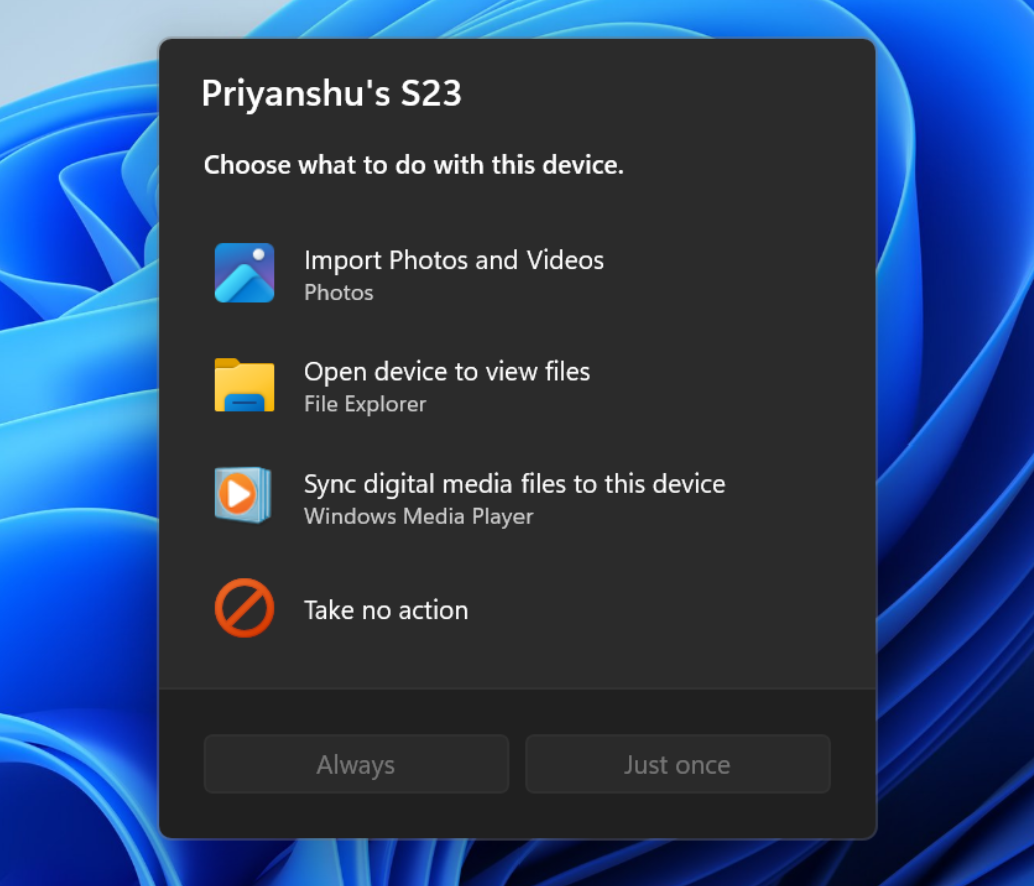
  • We've updated the AutoPlay dialog that helps you choose the preferred experience when devices are connected to your PC (e.g., a phone, camera, or removable drive). Rebuilt with WinUI, the refreshed experience is more consistent with the rest of Windows, supports dark mode, and continues to provide the familiar AutoPlay actions you use today. The experience is also more responsive to text scaling and display settings. Notifications for this dialog will now be docked in the notification center for easy access.
[caption id="attachment_179139" align="aligncenter" width="1024"]The new AutoPlay experience, shown in dark mode. The new AutoPlay experience, shown in dark mode.[/caption]

[Accessibility]

Release channel: Experimental, Beta A simpler way to open apps maximized
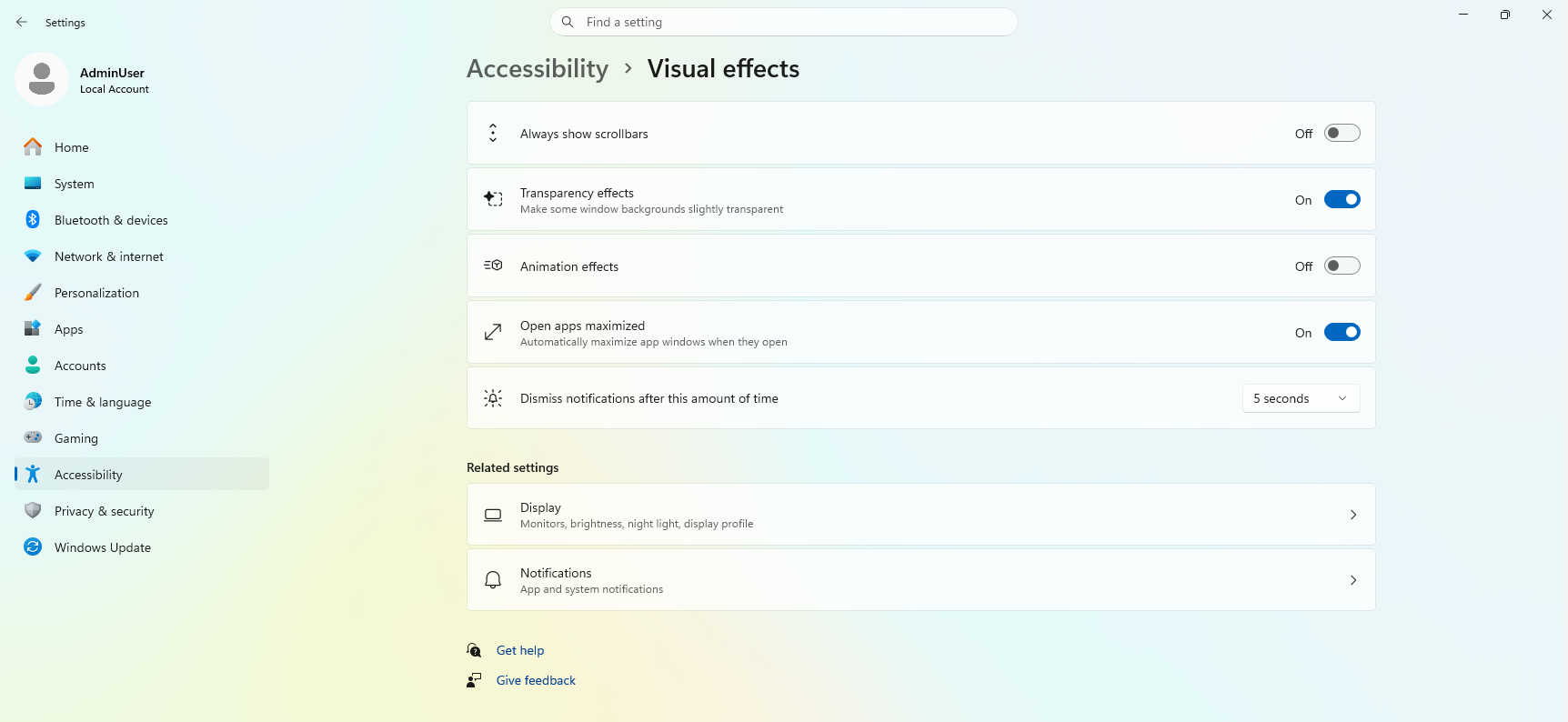
  • We are introducing a new accessibility setting, “Open apps maximized”, that automatically maximizes app windows when they open — so you no longer have to do it yourself every time. This is a small change that removes a bit of everyday friction, whether you use a screen reader or magnification, work in tablet mode, or simply prefer a consistent, full-screen workspace.
  • To turn it on, go to Settings > Accessibility > Visual effects and switch on Open apps maximized. Once enabled, Windows maximizes app windows for you as they open. Give it a try and let us know how it works for you.
[caption id="attachment_179140" align="aligncenter" width="1024"]UI showing the new "Open apps maximized" accessibility setting in Settings > Accessibility > Visual effects. UI showing the new "Open apps maximized" accessibility setting in Settings > Accessibility > Visual effects.[/caption] Thanks, Stephen and the Windows Insider Program team
Read the whole story
alvinashcraft
10 minutes ago
reply
Pennsylvania, USA
Share this story
Delete

Build Reusable Copilot Workflows with Skills and Agents

1 Share
From: Microsoft Developer
Duration: 21:42
Views: 41

Build reusable GitHub Copilot workflows with agent skills, custom agents, plugins, and marketplaces. Turn a repeated blog publishing process into an automated Copilot skill and use an agent persona to review and improve the result.

Episode 7 of 10 in Build your personal brand with Copilot. Continue to Episode 8 and explore the full series:
https://aka.ms/student-learning-series-website

Build your personal brand with Copilot is a beginner-friendly Microsoft Developer series for students. Follow Microsoft employees as they use GitHub Copilot, Visual Studio Code, GitHub Pages, Microsoft Foundry, MCP servers, and agent skills to create, publish, and improve a professional portfolio website.

In this episode:
0:00 Welcome to skills, agent personas, plugins, and marketplaces
1:15 What an agent skill is
1:46 How agent personas, plugins, and marketplaces work
2:42 Drafting a blog post from podcast notes
3:01 Reviewing the draft with the rubber duck agent
5:25 Converting the improved blog post to HTML
6:08 Publishing the blog post to GitHub
7:04 Turning the manual workflow into a reusable skill
9:32 Reusing the skill in a new session
12:13 Creating and publishing a second blog post
15:03 Installing skills from a plugin marketplace
17:30 Running the resume site sync skill
18:07 Updating the portfolio from a new resume
20:50 Exploring community skills and recapping the workflow

Connect with the presenters:
Kaleb Cole - Software Engineer at Microsoft: https://www.linkedin.com/in/kaleb-cole
Kurt Emrich - Software Engineer at Microsoft: https://www.linkedin.com/in/emrichkurt/

Resources:
Download the prompts, code, and episode artifacts from GitHub: https://aka.ms/student-learning-series
Learn more about GitHub Copilot: https://aka.ms/StudentAI-GitHubCopilotApp

Some features and cloud services may have eligibility, usage, or cost limits. Review the current terms before creating resources.

Subscribe to Microsoft Developer for more practical developer and AI learning:
https://www.youtube.com/@MicrosoftDeveloper

#GitHubCopilot #AIAgents #AgentSkills

Read the whole story
alvinashcraft
11 minutes ago
reply
Pennsylvania, USA
Share this story
Delete

Optimizing GitHub Copilot: Better Results, Fewer Tokens

1 Share
From: Microsoft Developer
Duration: 7:15
Views: 1

Optimize GitHub Copilot context and token usage to get better AI results with fewer tokens. Learn how the context window works and use /context, /init, and /compact to keep Copilot sessions focused, accurate, and efficient.

Episode 5 of 10 in Build your personal brand with Copilot. Continue to Episode 6 and explore the full series:
https://aka.ms/student-learning-series-website

Build your personal brand with Copilot is a beginner-friendly Microsoft Developer series for students. Follow Microsoft employees as they use GitHub Copilot, Visual Studio Code, GitHub Pages, Microsoft Foundry, MCP servers, and agent skills to create, publish, and improve a professional portfolio website.

In this episode:
0:00 Welcome and an introduction to context and tokens
0:21 What context includes
0:38 How Copilot processes information as tokens
0:46 Viewing context with /context
0:53 Understanding the context window with a suitcase analogy
1:04 Why too little or too much context can hurt results
2:07 Generating a case study page without project context
3:04 Adding project files for better results
3:57 Refreshing project context with /init
4:02 How copilot-instructions.md guides Copilot
5:02 Starting a focused session with the right context
6:08 Checking context usage
6:44 Reducing token usage with /compact
7:11 Recap of context and token optimization

Connect with the presenters:
Emily Rothrock - Software Engineer at Microsoft: https://www.linkedin.com/in/emily-rothrock/
Shivani Sundaresan - Software Engineer at Microsoft: https://www.linkedin.com/in/shivanisundaresan/

Resources:
Download the prompts, code, and episode artifacts from GitHub: https://aka.ms/student-learning-series
Learn more about GitHub Copilot: https://aka.ms/StudentAI-GitHubCopilotApp

Some features and cloud services may have eligibility, usage, or cost limits. Review the current terms before creating resources.

Subscribe to Microsoft Developer for more practical developer and AI learning:
https://www.youtube.com/@MicrosoftDeveloper

#GitHubCopilot #PromptEngineering #AITools

Read the whole story
alvinashcraft
11 minutes ago
reply
Pennsylvania, USA
Share this story
Delete

Control GitHub Copilot Remotely from Your Phone

1 Share
From: Microsoft Developer
Duration: 6:31
Views: 9

Control GitHub Copilot remotely from your phone with the GitHub mobile app. Start a Copilot session on your computer, connect with a QR code, answer questions from your phone, and return to a completed portfolio feature in the canvas.

Episode 10 of 10 in Build your personal brand with Copilot. Explore the complete series:
https://aka.ms/student-learning-series-website

Build your personal brand with Copilot is a beginner-friendly Microsoft Developer series for students. Follow Microsoft employees as they use GitHub Copilot, Visual Studio Code, GitHub Pages, Microsoft Foundry, MCP servers, and agent skills to create, publish, and improve a professional portfolio website.

In this episode:
0:00 Welcome to the final episode
0:47 How GitHub Copilot remote control works
1:18 Planning a page progress bar
1:58 Asking Copilot clarifying questions one at a time
2:31 Turning on remote control with /remote on
2:49 Scanning the QR code with the GitHub mobile app
3:01 Opening the same Copilot session on a phone
3:14 Continuing the session away from the computer
3:27 Answering the navigation bar question
3:56 Choosing where the progress bar should appear
4:29 Letting Copilot finish with reasonable assumptions
5:08 Reviewing the completed feature in the canvas
5:32 Recap of the remote control workflow
5:51 Series wrap-up

Connect with the presenters:
Grant Harris - Software Engineer at Microsoft: https://www.linkedin.com/in/grantwharris/
Kaleb Cole - Software Engineer at Microsoft: https://www.linkedin.com/in/kaleb-cole

Resources:
Download the prompts, code, and episode artifacts from GitHub: https://aka.ms/student-learning-series
Learn more about GitHub Copilot: https://aka.ms/StudentAI-GitHubCopilotApp
GitHub's guide to remote Copilot sessions: https://github.blog/news-insights/product-news/take-your-local-github-sessions-anywhere/
Download GitHub Mobile: https://github.com/mobile

Some features and cloud services may have eligibility, usage, or cost limits. Review the current terms before creating resources.

Subscribe to Microsoft Developer for more practical developer and AI learning:
https://www.youtube.com/@MicrosoftDeveloper

#GitHubCopilot #GitHubMobile #AITools

Read the whole story
alvinashcraft
11 minutes ago
reply
Pennsylvania, USA
Share this story
Delete

RNR 371 - RNR Explains: Pan Responder

1 Share

How does React Native handle touch gestures? Robin and Tyler unpack PanResponder's callbacks, gesture state, and JavaScript-thread performance, plus why you'll still reach for React Native Gesture Handler.


Connect With Us!


This episode is brought to you by Infinite Red!

Infinite Red is a premier mobile app consultancy, especially focused on Expo and React Native, located fully remote in the US. We’re a team of 30 with highly experienced mobile app developers and have been doing this for over a decade. We are also one of the first development teams to adopt agentic coding in a way that keeps high quality standards and aren’t afraid to do things the old school way if we need to. If you’re looking for mobile app or React Native or Expo expertise for your next project, hit us up at infinite.red/radio.


Download audio: https://cdn.simplecast.com/media/audio/transcoded/1208ee61-9c16-43c1-bc4c-ca790717f4a8/2de31959-5831-476e-8c89-02a2a32885ef/episodes/audio/group/6ab07c75-dc23-478d-b0e7-31b6ac8090c9/group-item/57f7c757-b35e-4ba0-83a2-d596c7f966c8/128_default_tc.mp3?aid=rss_feed&feed=hEI_f9Dx
Read the whole story
alvinashcraft
11 minutes ago
reply
Pennsylvania, USA
Share this story
Delete
Next Page of Stories