Log in



I’m sure most of you have run into this at some point: you quickly press the Start button, start typing to find your app, and hit Enter, only to realize that you’re opening a Microsoft Edge tab with a Bing search. But you can now turn off these web results, as Bing-free Windows Search has begun rolling out to more users this week.
Microsoft began rolling out the Bing-free Windows Search experience in August 2026, but the gradual rollout meant most of us were hanging around without the actual feature, and we never knew when it would “fully” become available.
How to turn off Bing and Microsoft Store results in Windows Search
Now, you’re not going to wake up and find Bing turned off by default in your search experience. You have to do it manually, and if the server-side change has reached your PC, you should be able to turn off Bing as well as Microsoft Store results by following these steps:
- Open Settings > Privacy & security.
- Open Search.
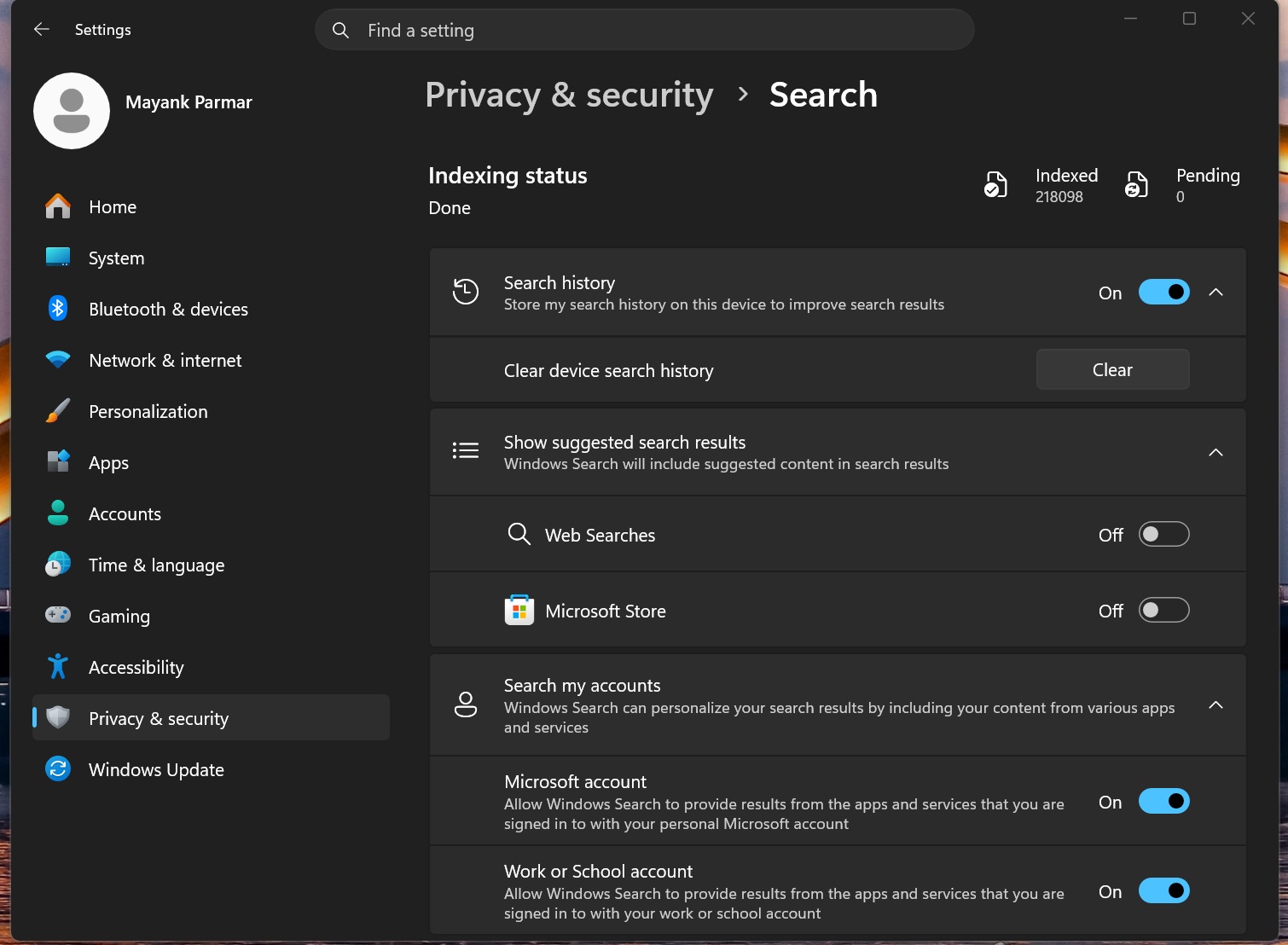
- Right below the indexing status, you’ll see the “Show suggested search results” section, with two toggles for web and Microsoft Store suggestions.
- Turn off web searches and, for the best results, Microsoft Store suggestions. Then reopen Windows Search.
Microsoft doesn’t call it Bing in Windows Search, but “web searches,” because in regions like Europe, you can set a search engine other than Bing as your preferred source.
Windows Search feels much better without Bing
Now, if you open Windows Search, you’ll notice that the homepage no longer has Bing-related widgets, such as trending keywords, quizzes, and the so-called lesser-known facts of the day. All the Bing- and MSN-related adware instantly disappears from the Search homepage.
You’ll now be staring at a clean homepage with a few of your recent searches, and of course, even those will only include local searches. You can also hover over the items and remove whatever you want. I cleaned it up, and here’s what it looks like on my PC:
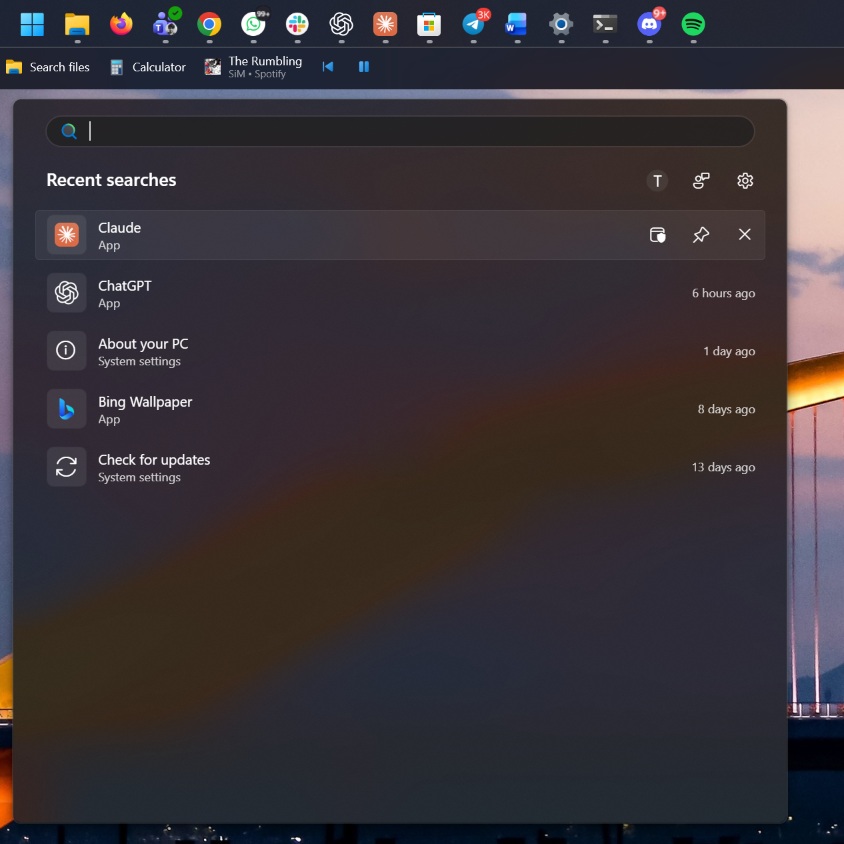
It’s a breath of fresh air, but if you’ve ever used the Windows Registry or third-party tools to force-disable Bing in Windows Search, this experience will feel familiar.
Then, I pressed the letter S on my keyboard, and it instantly brought up apps starting with S, including Spotify. I also noticed Windows settings, files, and folders that start with the letter or include it somewhere in the name.
Now, try doing it on your PC with Bing search turned on, which is the default behavior. I bet you’re going to find a few Microsoft Store listings and queries from Bing alongside Spotify. And it wouldn’t be nearly as fast as Windows Search without Bing.
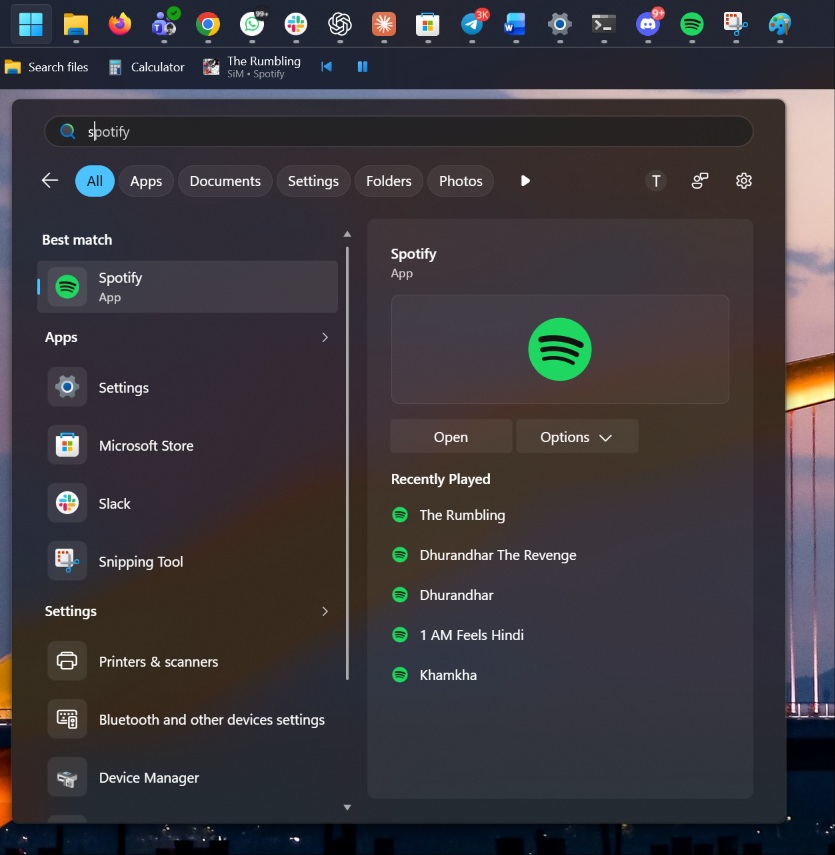
You usually won’t run into a blank result if you’ve got everything indexed. But if nothing on your PC matches your query, you’re more likely to see “No results found” than you would with Bing enabled.
Moreover, Windows Search is now much better at understanding typos, so if you type “Otl” when looking for Outlook, you’ll still get the email client in the search results. The same goes for “Putlook.”
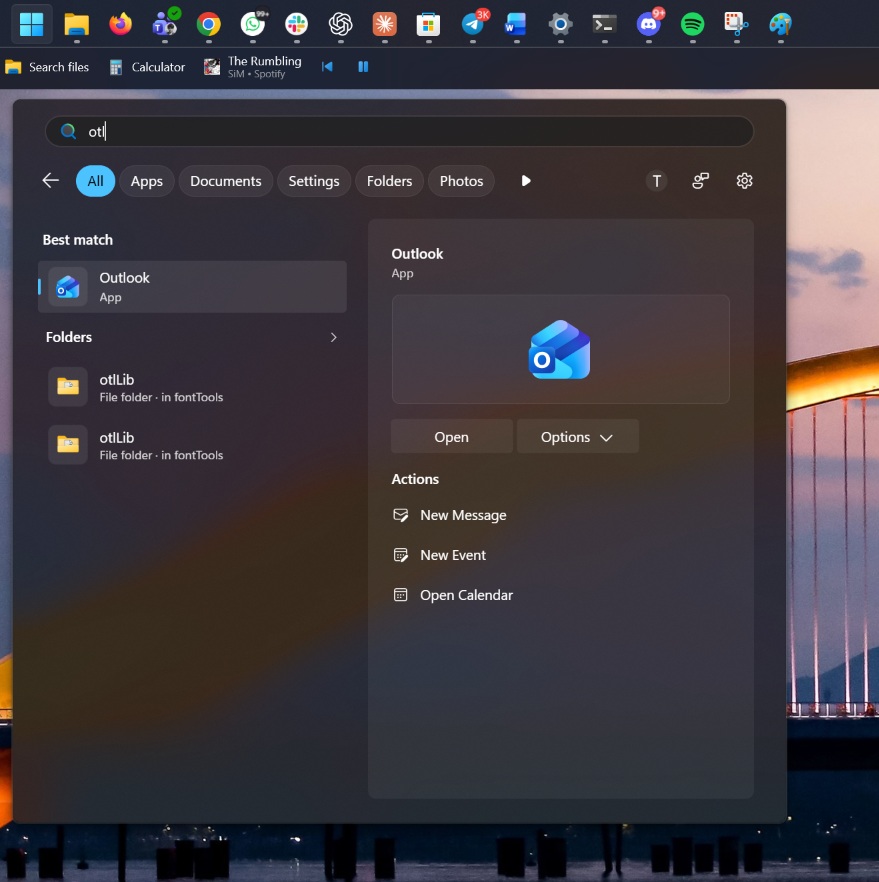
I’ve never been so impressed with Windows Search, and it’s quite interesting how turning off Bing just made everything better. Microsoft could have done it years ago, and that would have saved the company from all the embarrassment. For comparison, I also have a MacBook, and Windows Search turned out to be better than Spotlight, which would sometimes struggle to find apps.
While this new Windows Search is available for more people, it’s still being “rolled out.” That means there’s a high chance some of you may not get it this week as well.
The post Windows 11’s Bing-free Search is showing up on more PCs, and it’s now better than Mac’s Spotlight appeared first on Windows Latest